OsTrax User Guide
October 13, 2026
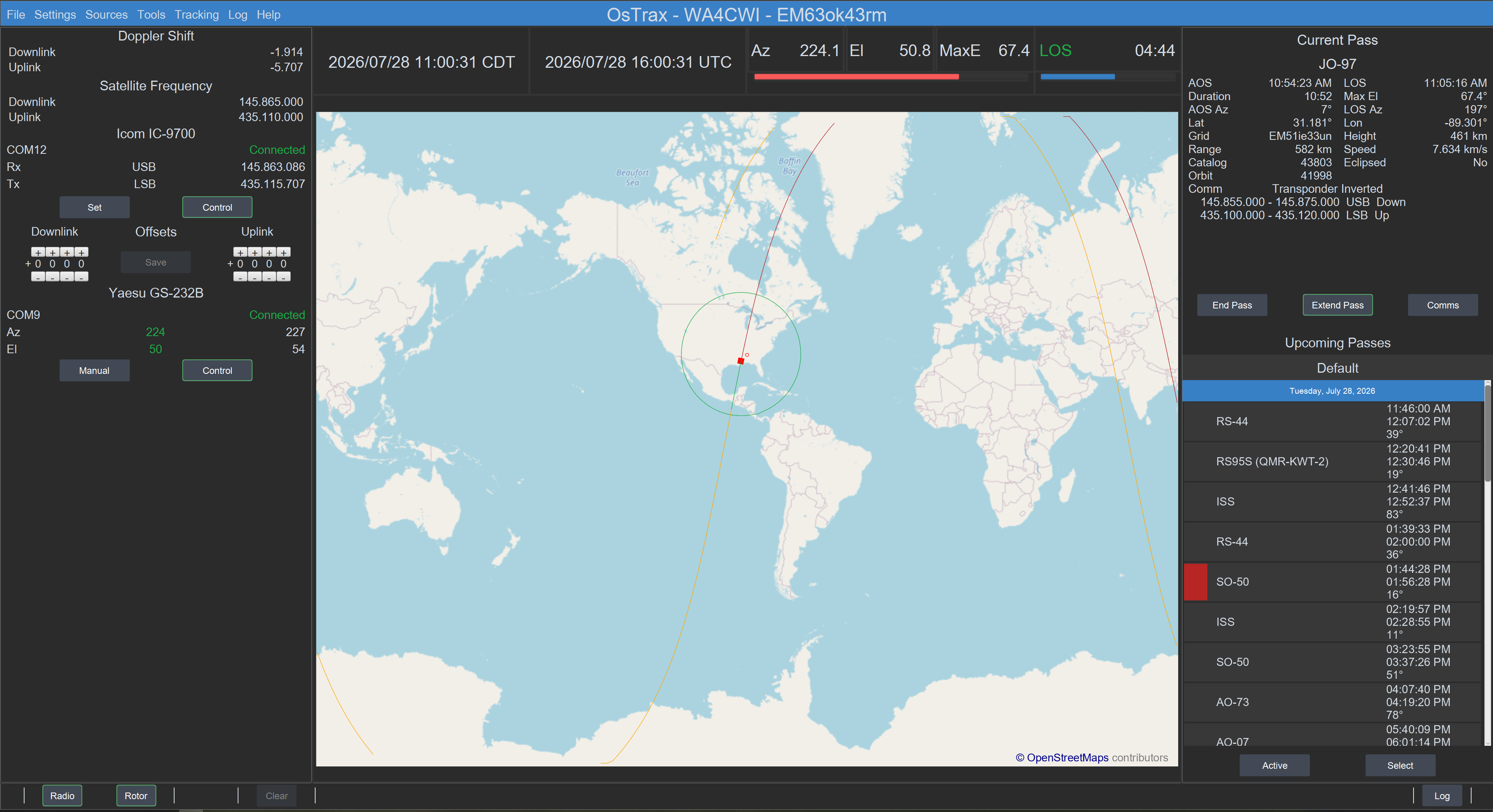
Introduction
Hearing the sound of a spacecraft signal or seeing the signal rising on a visual display
is one of the more exciting forms of radio communication.
Receiving data from a spacecraft or making a two-way contact through a spacecraft is
even more exciting.
Satelite communication is different from other forms of radio communication in that
multiple actions are required to make communication possible.
Although different, satellite communication should not be difficult.
OsTrax is an exciting and innovative satellite tracking system designed to reduce the
effort necessary to make and maintain satellite contacts.
OsTrax eliminates the time and effort required to maintain satellite tracking and
communication information, improving focus on making more and better satellite contacts
or collecting satellite telemetry data.
OsTrax is designed around three major principals; Information, Operation and
Communication.
Information means that no additional resources such as a mobile app to determine
future satellite passes are required. OsTrax provides satellite information based on
user selection and full satellite information including communication link definitions
are readily accessible. Satellite information is maintained and automatically updated
without user intervention.
Operation is simplified with well placed and accessible controls to manage
satellite passes, radios and rotors and monitor current status information in all areas.
Communication is end result of adequate and timely information combined with
accessible and simple operation. No time lost chasing definitions or forgetting upcoming
satellite passes results in more and better communicaion opportunities.
Utilizing the latest Human Performance Principals, OsTrax groups and locates relevant
information where it is easily accessable, using color and highlighting to emphasis
status and conditions. Controls are co-located with information to form managable
information groups. The result is a system that is consistant, easy to operate and
understandable at a glance, resulting in effective satellite communication.
Designed for operating ease and flexibility, OsTrax is the complete satellite tracking
platform for Windows (10 and 11), Apple macOS (A64 and x64) and Ubuntu (Intel x64).
OsTrax is flexible and easily configurable using a menu system allowing extensive user
customization.
OsTrax supports satellite radios with full doppler and frequency control. Multiple radio
support extends the ability to use radios that do not have full satellite capability.
OsTrax supports all popular rotor controllers with full user selection of operating and
range capabilities including flip mode.
Unlimited ground stations may be defined with each ground station having unlimited
satellite groups.
Satellite groups allow easy arrangment of satellites in combinations like FM, telemetry
or Field Day. Satellite groups are easily maintained and selectable for use.
Satellite passes are user selectable and schedulable. The Upcoming Pass feature
highlights future passes for the active satellite group and highlights potential pass
conflicts. Pass conflicts and/or pass priorities can be resolved using simple mouse
click selections.
Satellite communication link information is automatically maintained requiring no manual
interaction.
Automatic notification of Orbital Element and Satellite Profile changes results in more
operating time with consistent satellite orbital and communication information.
User satellite and satellite communication link definitions support new satellites or
extend satellite communication capabilities.
Contact logging creates log records that are instant, accurate and can be exported to
any external logging program.
User settings, preferences and definitions can be saved to an external file for backup
and recovery or to transfer a configuration to another OsTrax instance.
OsTrax Features
- Multiple operating systems: Window, macOS and Ubuntu (Intel X64), each licensed separately.
- Convenient, easy setup using pull down menus.
- Preference settings enable user optimization including pass, map, radio, rotor and doppler settings.
- Ability to run multiple concurrent instances, each separately configured.
- Message area provides system, satellite pass and orbital element update conditions.
- All popular radios including SDR.
- All popular rotor controllers supported.
- Multiple defined radios.
- Radios and rotor selectable at any time including ability to connect and disconnect from OsTrax.
- Radio and rotor interface by serial port emulation using USB with current status information.
- Orbital Element source selection with update status and user scheduled updates.
- Scheduled satellite profile updates with update status and user scheduled updates.
- User defined Satellites.
- Used defined satellite profiles.
- Unlimited ground station definitions.
- Unlimited satellite groups for each ground station.
- Simple satellite selection.
- Ability to auto schedule or skip satellite passes.
- Pass Predict, prediction of upcoming satellite passes.
- Pass selection priority.
- Detailed radio, satellite, doppler shift and rotor information.
- Satellite ground coverage footprints centered on satellite or ground station (NASA style).
- Unlimited footprints for common pass coverage determination.
- Unlimited transverters assigned to satellite communication links by name.
- Sun and Moon tracking with current position information.
- User controlled satellite pass tracking to review or preview satellite passes.
- Simple, uncluttered coverage map centered on ground station or coordinates.
- Coverage map uses colors to highlight satellite path and current pass status.
- Alternate color selections and visual icons for color impaired vision.
- Selectable future satellite pass information with path preview on coverage map.
- Satellite pass communication link selectable even with pass active.
- Satellite communication links listed and selectable by type, mode and frequency.
- Satellite doppler shift and frequencies at satellite displays.
- Optional sounds for AOS, LOS, out of passband tuning and error notification.
- Contact logging with insertion of satellite information when available, including satellite name, mode and frequencies.
- Logged contacts exportable in ADIF 2 or 3 format.
Overview
This document serves as the User Guide for OsTrax including design philosophy, operating information and installation for Windows, macOS and Ubuntu.Major topics are selected from the topic list on the left.
Highlighted text like Overview that is underlined when covered by the mouse pointer can be clicked to display further details about a subject.
Important topics are highlighted using the Note: prefix with the topic text in italic.
OsTrax is based on the principal of a Pass, a pass of a selected satellite within the range of the active ground station.\ Passes are selected based on user requirements, then automatically sequenced under user control to provide the best opportunity to access desired satellites.
The phrase Active Pass refers to the time a satellite pass is within communication range of the current ground station (AOS to LOS).
OsTrax uses the Dotted format to display frequences such as 145.960.000 to represent 145960000hz. When an abbreviated frequency is required, Ostrax displays the frequency followed by the appropriate abbreviation memonic, such as 145.960 mHz.
Views
Screen LayoutContains control and information areas beginning with the Menu Bar on the left, current ground station information area in the center and Orbital Element Source status when appropriate on the right.
Contains controls for radio and rotor control, logging and the central message area.
The left zone relates to devices, containing multiple views that detail the current doppler offsets for the selected satellite communication link, at-the-satellite uplink and downlink frequencies, current along with optional radio frequency offsets, and rotor controller status and position information.
The right zone is divided into two views with controls for each view.
The top view is the current pass with controls to manage the pass and select satellite communication links.
The lower view is the upcoming pass list, a list of future satellite passes based on user selection.
The center zone is divided into two views, the information view on top and the map view.
The information area is sub-divided into views that display the current date and time as local and UTC, the current azimuth and elevation of the satellite and the pass countdown clock which countdowns to AOS for the current pass then changes at AOS to a LOS countdown clock with selectable LOS aproaching warnings.
The map displays the ground track for the current satellite pass using different colors to represent the pass stage and status in a clean and non-distracting form. Multiple map images may be selected. The selected ground station is highlighted as well as any selected footprint locations. A footprint of the satellite can be displayed satellite based, centered on the current location of the satellite or in NASA style, centered on the ground station.
Top Zone

General System Settings.
- Units
- Set display units as Metric or Imperial
- Automatic Source Update
-
Automatically updates Orbital Element sources when required
(Source changed) without requiring manual intervention.
Notification of the updates are posted in the message center. - Source Update Interval
- The time in hours between checks for updated Orbital Element sources and Satellite Profiles.
- Audio Level
- Sets the audio sound output level.
- Instance
-
Opens dialog to manage multiple OsTrax instances.
Define, delete or rename instances. All about OsTrax instances. - Vision
- Selects alternate plotting and status colors for red-green deficient vision. Colors explains these options.
- Visual Icons
- Uses visual icons in addition to colors in plotting and status information fields to supplement color only indications. Refer to Colors for more details.
- Map Image
- Selects the map background image.
- Center map
- Center map longitude on the current ground station longitude or entered longitude.
- Map Center Longitude
- If Center Map is set to Longitude, specifies the longitude in degrees as the map center longitude.
- Pass Path Width
- Sets the width of the map satellite pass path.
- Satellite Footprint
- Selects satellite ground coverage footprint centered at the satellite coordinate location following the satellite pass path or centered on the current ground station and additional footprints (NASA syle).
- Footprints
- Manages optional satellite footprints centered at defined locations with the footprint size determined by the satellite altitude. Satellite Footprints provides details on managing additional satellite footprints.
- Day-Night Terminator
- Day-Night terminator using dark-light shading.
- Min Elevation
- The minimum elevation in degrees a satellite pass must reach before the pass is added to the upcoming pass list.
- Pass Look Ahead
- The time in hours from the current time that passes will be evaluated.
- Extended Pass Time
- The number of minutes a pass will be extended when the “Extend Pass” control is pressed. Extended pass time is cumulative. Each press of the control extends the pass by the desired preference.
- LOS Hold Time
- The time in seconds a pass will be held following LOS before it is automatically removed and the tope Upcoming Pass List promoted to be teh Current Pass.
- LOS Warn Time
- Specifies the number of seconds prior to LOS to visually indicate the pass is approaching LOS.
- AOS Prestart Time
- The number of minutes prior to a pass AOS start time OsTrax will begin tracking the satellite.
- Auto Pass Select
- If On, each satellite pass in the Upcoming Pass list will be automatically tracked unless disabled in the individual pass entry. Auto Pass Select is useful for automatic tracking telemetry satellites.
- Pass Time Format
- Selects the Pass time display format as 12 or 24 hour.
- Connect Radio at Startup
-
Attempts to open the serial port connection to any
defined radios at startup.
The serial port connection for the radios is managed by the Radio control located at the bottom of screen in the control area. - Enable Radio Control At Startup
-
Automatically sets the radio Control button
active at startup rather than requiring manual
intervention.
When the Control is active, the radio frequency and mode are set when a satellite pass begins and the radio frequencies updated by dopple shift changes during the pass. - Radio Active
-
Determines when radios are updated with frequency
changes.
- Continous
- Radio(s), Doppler Shift and Satellite Frequency are continuously updated based on the selected comm link of the Current Pass.
- Pass Only
- Default. Radio(s), Doppler Shift and Satellite Frequency are updated only during an active pass.
- Passband Edge Warning
-
For transponder satellite communication links generates
visual and audible warnings if the radio receiver is
tuned out of the link passband.
Passband Edge Warning is active only when the radio Control is enabled.
Passband limit frequencies are based on the receive frequency at the satellite and include current doppler offsets. Therefore, the frequency read on the receiver when a warning is received may be different from the defined passband limits.
- Connect Rotor at Startup
-
Attempts to open the serial port connection to the
defined rotor at startup.
The serial port connection for the rotor is managed by the Rotor control located at the bottom of screen in the control area. - Enable Rotor Control At Startup
-
Automatically sets the rotor Control active at
startup rather than requiring manual intervention.
When the Control is active, information is passed to the rotor contoller to position the antennas. - Park Antenna On Shutdown
- Selects if the antenna is to be automatically moved to the parked position when OsTrax is normally terminated.
- Park Azimuth
- The azimuth position in degrees to park the rotor on shutdown or by command.
- Park Elevation
- The elevation position in degrees to park the rotor on shutdown or by command.
- Azimuth Change
-
During high elevation passes determines how azimuth
changes are made.
Click for more information. - Rotor Azimuth Dead Band
- The number of degrees before the rotor is commanded to move to a new azimuth during a pass.
- Rotor Elevation Dead Band
- The number of degrees before the rotor is commanded to move to a new elevation during a pass.
For CW, FM and SSB communication links the amount doppler shift must change before the doppler is updated.
- Doppler Change
- The change in hertz (hz) between doppler evaluations before doppler shift is updated.
- Interval
- The time interval in seconds determines how often the communication link is evaluated for doppler changes. Shorter time intervals consume higher computing resources.
Manage ground station definitions.
Manage ground stations and select a ground station as the
current ground station.
Ground stations are defined by name and geographic coordinates
in Decimal Digit form (dd.dddd) using negative numbers for West
or South coordinates.
Ground stations coordinates may also be entered using a ten
digit Gridsquare for the location which will be converted to the
appropriate latitude and longitude coordinates.
Note: Gridsquares define an area based on the number of character
pairs entered with increasing resolution as the number of
pairs increase. To achieve the accuracy of a
latitude/longitude entry, five Gridsquare pairs (or ten
characters) must be entered..
Altitude is approximate and entered in meters.
Altitude is not used at this time but may be used in the
future.
Select a Radio
Select a Rotor Controller
Manage satellite groups for a ground station.
Satellite Groups are named list of satellites which may be
selected for pass determination, allowing satellites to be
grouped together for contest, telemetry or any desired
combination. An unlimited number of satellite groups each with
an unlimited number of satellites can be defined for each ground
station. Only one satellite group can be active at a given time.
For more information view
Satellite Groups
- Assign
- Manage transverter assignments for satellite communication links.
- Manage
- Manage transverters by adding or deleting transverter definitions. Details on managing transverters is found at Transverters
- Source Status
- List and manage Orbital Element sources. Source Status
- Pass Predict
- Evaluate upcoming passes for a satellite. Pass Predict
- User Satellite
-
Manage user defined Satellites.
The User Satellites dialog defines satellites that are not in the official orbital element repositories or to correct errors found in the repositories.
Satellite selection for user defined Satellites requires setting User as the Orbital Element source. Care should be taken when using multiple sources in a selection list as the search will end at the first entry found.
User Satellites are shared across all ground stations and may be deleted or modified by any ground station.
A User Satellite entry is entered by clicking the ‘New’ key on the User Satellite dialog. This will open a management dialog where Orbital Element data describing the satellite can be entered . Clicking the Add control creates a orbital element definition as a user defined satellite.
The orbital element information can be entered in one of three ways; traditional Three Line Element (TLE) with support for Alpha-5 catalog number extensions, two line Comma Separated Value (CSV) in CelesTrak form or in multi-line JSON in either AMSAT or CelesTrak form.
- A Three Line Element (TLE) is the traditional format for satellite orbit data and is being depreciated. OsTrax supports the Alpha-5 TLS extension to the satellite catalog identifier fields.
- A two line Comma Separated Value (CSV) consist of a header line with descriptive names for each value on the second line separated by commas using the CelesTrak format. The second line consist of the data values, in correct form, corresponding to the header entries on the first line. Only one data value line can be included.
- A JSON entry is the satellite orbital data in JSON format with descriptive names and data for each element in AMSAT or CelesTrak format. A JSON entry must begin with an open bracket { and end with a close bracket } character.
Note: When using the AMSAT JSON format, the 'AMSAT_NAME' value replaces the traditional 'OBJECT_NAME' value.
In all cases, OsTrax attempts to use the AMSAT name, if defined.
Only one orbital element entry may be entered into the input area.
User Satellites are listed in alphabetical order in the dialog, listing the satellite name and catalog number.
To delete an entry, double click on the entry listing to open a confirmation dialog where the entry may be deleted.
User Satellites are selected from the Pass Predict dialog or Upcoming Pass Select control by selecting User as a orbital element source. - User Comm
-
Manage user defined satellite communication links.
User Comm links are communication links manually defined by the user. Where User Satellite must be selected in the satellite selection process, user defined communication links are available for any satellite definition matching the catalog number of the user defined communication link.
This allow for corrections to Satellite Profile comm links or inclusion for satellite comm links that are not in the Satellite Profile system or for satellites defined by the user that are not in any Orbital Element source.
User communication links (Comm Links) are shared across all ground stations and may be deleted or modified by any ground station.
User communication links are managed with the User Comm Links dialog listed by satellite catalog number. New comm links are defined by clicking the New control. To delete or update a comm link entry double-click on the comm link entry to open the Update Comm Link dialog. Pressing the Delete control deletes the comm link entry.
New comm links are defined in the ‘New Comm Link’ dialog by entering the satellite name or catalog number for the designated satellite.
The 'Matching' wildcard character '*' can be entered as the last character of the satellite name to produce a list of all satellites with names starting with and matching the entered characters up to the matching wildcard character. The 'Includes' wildcard character '#' as the last character in the entered name will result in a list of all satellite names that contain the charactes up to the wildcard character.
The satellite of interest can be selected from the list.
Note: The catalog number is not checked for a matching satellite catalog number meaning comm links can be defined prior to a satellite definition.
Selecting an entry from the Type column establishes the Comm Link type and enabled the fields applicable for the selected type. When all fields are entered correctly, the Add control is clicked to create the new comm link.
The applicable Uplink and/or Downlink mode is selectable from the mode pulldown list.
Frequencies are entered in hertz (hz). The Passband for transponder comm links is entered in hertz (hz) and for FM repeater links requiring tone access, the tone is selected from the Tone pulldown list, Zero (0) indicating no tone is required.
User defined Comm Links are highlighted using a lighter background color in communication link selection dialogs.
Selects tracking type.
- Moon
- Track the Moon.
- Satellite
- Track selected satellites.
- Sun
- Track the Sun.
- User
- Manually view and control the plot of a selected satellite. User Satellite Tracking
Note:
Changing the tracking selection removes any settings related to
the former selection.
For example, if the current tracking selection is Satellite with
passes active or scheduled and the tracking target is changed
then changed back to Satellite, prior settings and schedules are
lost.
Create and manage contact log records that can be exported as ADIF files.
See Contact Log for details.
The information area on the right side of the top line is comprised of two sections.
- Update Available
-
If an orbital element update or an OsTrax Satellite Respository
update is available, a control with the name
Update Available is displayed.
Clicking the control, starts an immediate update of the element or repository as described here. - Instance Name
-
If multiple OsTrax Instances are active, the Instance name is
display for reference.
Click for information on how to define and use Instances.
The default Instance name is never displayed.
Left Zone
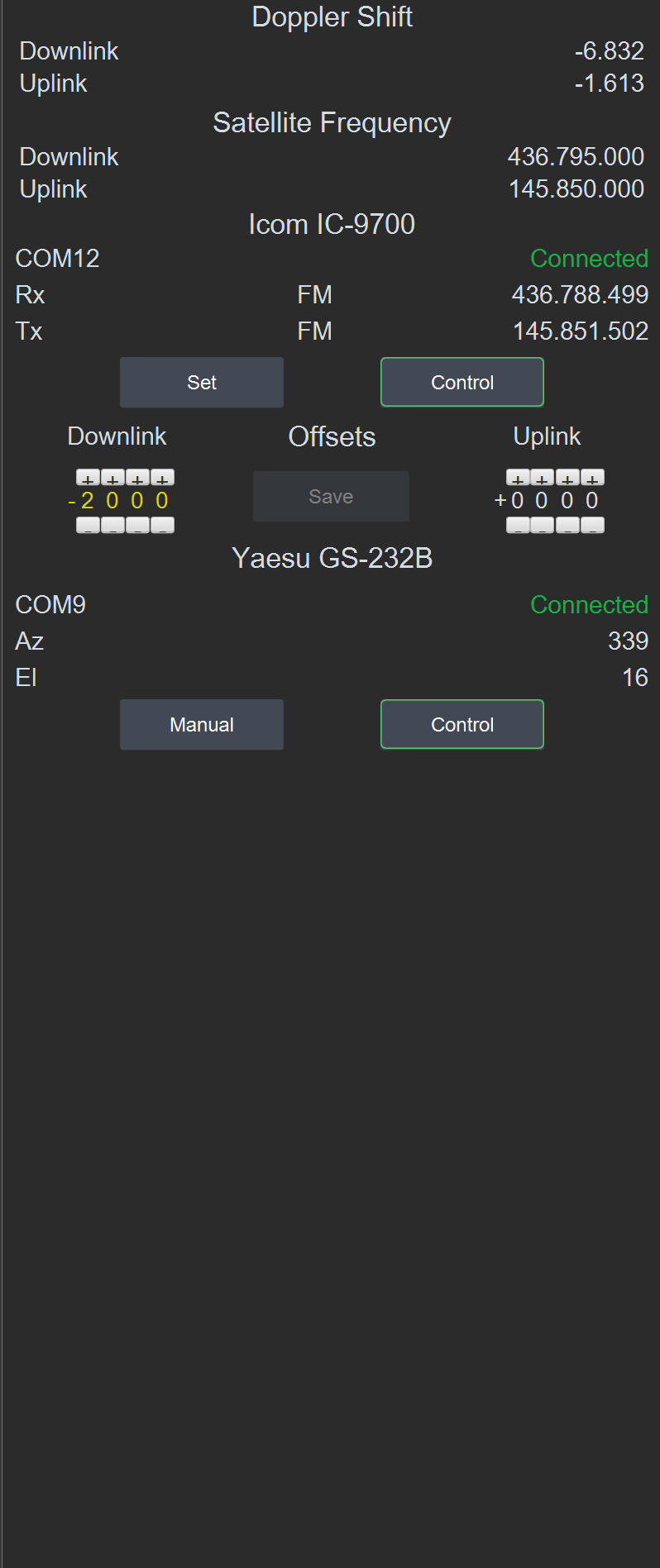
The left zone is made up of several views that describe the physical connections
between a satellite pass, OsTrax and the physical devices providing
communication with the satellite.
Views are disabled or enabled based on the status of the physical connection to
the devices, user controls and the state of the current satellite pass.
Doppler Shift

Doppler Shift is the uplink and downlink doppler shift for the current
satellite pass determined by the transmit and receive frequencies and the
position and speed of the satellite.
Doppler Shift is positive as the satellite approaches the ground station and
negative as the satellite moves away from the ground station.
The Doppler Shift view is enabled when a satellite pass is after the AOS
prestart time and prior to the pass LOS time. The presence of the Uplink and
Downlink shifts are determined by the selected satellite communication link.
Satellite Frequency

Satellite Frequency is the actual uplink (receive) and downlink (transmit)
frequencies at the satellite determined by the radio receive and transmit
frequency settings.
Satellite Frequency is useful when a Transponder communication link is
active to determine the exact satellite frequencies based on the radio
receive frequency. For FM repeater links and beacon/transponder links the
frequencies are the defined frequencies for the link.
The Satellite Frequency view is enabled when a satellite pass is after the
AOS prestart time and prior to the pass LOS time. The presence of the Uplink
and Downlink frequencies are determined by the selected satellite
communication link.
Radio

The Radio view provides operating and status information on the radio or
radios selected and controls to manage the radio selections.
Each radio entry list the name of the selected radio and the name and status
of the physical connection to the radio.
Note: The connection status is only the physical connection status and does
not indicate communication is active with the radio. For example, a USB
serial adapter will only reflect the status of the connection between
OsTrax and the adapter and does not indicate the presence of a physical
connection between the adapter and the radio.
Note: If a radio is powered on after OsTrax starts, a radio is selected or a
pass started, it is necesssary to recycle the radio "Control" before
OsTrax can communicate with the radio.
The actual uplink (transmit) and downlink (receive) frequencies of the radio
are displayed adjusted for any applicable doppler shift.
If multiple radios are selected, the top radio will be configured for
transmit only with the bottom configured for receive. The uplink and
downlink frequency displays will be associated with the appropriate transmit
and receive radio.
The Radio view is enabled when a satellite pass is after the AOS prestart
time and prior to the pass LOS time. The presence of the Uplink and Downlink
frequencies are determined by the selected satellite communication link.
- Set
- Sets the radio or radios to the frequencies defined for the active satellite communication link. For Transponder communication links the frequency is set to the center of the transponder passband adjusted for current doppler rates.
- Control
-
Provides control of frequency updates to the radio. When enabled,
the radio or radios are updated based on the satellite doppler shift
based on rates set in Setting->Preferences->Doppler for the
communication link type.
If a satellite pass is active and Control is selected the uplink and downlink frequencies are displayed in white. When Control is unselected the uplink and downlink frequencies areas are disabled and the frequencies displayed in amber. The displayed frequencies continue to be updated but not passed to the radio or radios.
Radio Offsets

Radio Offsets optionally add positive or negative offsets to a transponder
communication link to assist in adjusting for frequency differences in
either the uplink radio and/or satellite that prevent the correct
association between the radio receive frequency and the corresponding
satellite downline frequency.
Offsets may be saved for the communication link and will be automatically
applied to future passes.
Complete information about using offsets can be found at
Radio Offsets.
Rotor
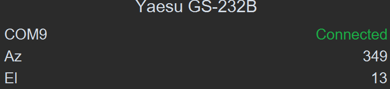
The Rotor view provides operating and status information on the selected
rotor controller and controls to manage the rotor.
The Rotor view list the name of the selected controller and the name and
status of the physical connection to the rotor.
Note:
The connection status is only the physical connection status and does
not indicate communication is active with the rotor. For example, a USB
serial adapter will only reflect the status of the connection between
OsTrax and the adapter and does not indicate the presence of a physical
connection between the adapter and the rotor controller.
Note: If the rotor controller is powered on after OsTrax starts or the
controller is selected, it may be necesssary to recycle the "Rotor"
control before OsTrax can communicate with the rotor.
The current azimuth and elevation setting of the rotor are displayed.
Azimuth and elevation are normally displayed in white unless the pass is
determined to be flip capable with azimuth and elevation displayed in
yellow. At the end (LOS) of a flip capable pass the azimuth and elevation
settings change to white.
When a new azimuth and/or elevation is calculated for an active satellite
pass, target values are displayed in green until the rotor controller
reports the rotor has moved to the target setting.
- Manual
- Opens a dialog to allow manual rotor movement.
- Manual Moves the azimuth and elevation rotors to the selected positions.
- Park Moves the azimuth and elevation rotors to the positions defined in Settings->Preferences->Rotor.
- Stop Halts any active rotor movement.
- Control
- When enabled, antenna position changes during a satellite pass are sent to the rotor contoller to position the antennas.
Center Zone
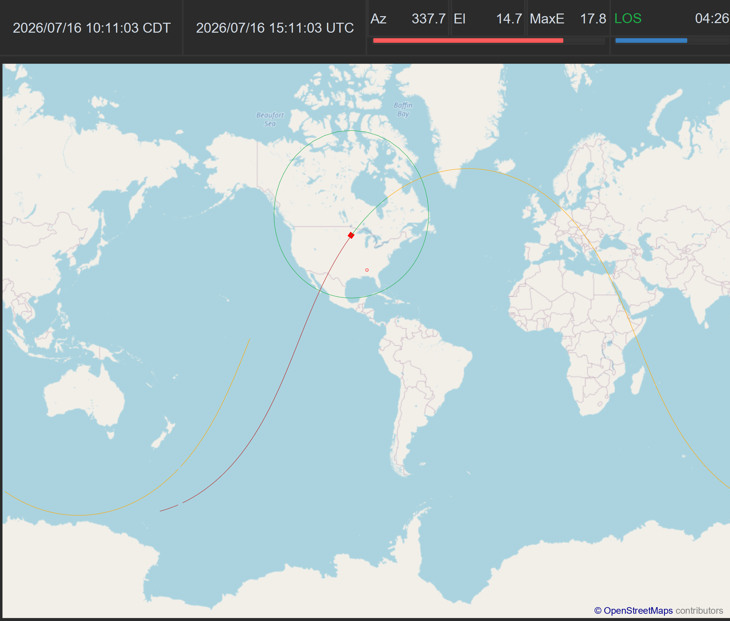
The center zone is the main zone of focus containing information and map views.
At the top is the information view beginning with the current time in both
local, as set by the user’s computer, and UTC updated once per second.

Following the time views is the position view showing the current azimuth,
elevation and maximum elevation for an active satellite pass relative to the
ground station. Position information, like the time views, is updated once per
second.
Position information is only available if the current satellite pass has been
started and AOS or AOS Prestart has occurred. When AOS or AOS Prestart occurs,
OsTrax will begin tracking the satellite pass, updating rotor position and
displaying the current azimuth and elevation for the satellite. Elevation will
be highlighted in red if the current elevation is below the minimum pass
elevation set in
Menu-->Settings->Pass->Min Elevation. Elevation values below minimum
elevation normally occur in the time period between AOS Prestart and AOS times.
At AOS the elevation will be the minimum elevation.
Under the position view is the pass elevation progress bar plotted in blue which
increments forward to the maximum elevation for the pass (TCA) then changes
color to red and decrements downward to the LOS elevation. The elevation
progress bar provides a visible indication of pass accension/descension from AOS
elevation to LOS elevation.

The right position of the information view is the pass countdown clock which
counts down toward the moment of AOS for a started satellite pass. The AOS
countdown time is displayed in white until AOS occurs. At AOS, the text changes
to LOS, displayed in green, to count down the remaining time to LOS. At the time
set by the user in Settings->Preferences->Pass->LOS Warn Time, the color
of the LOS countdown timer changes to red as a visible indication the end of the
pass is approaching.
Once the end of the active pass is reached (LOS) the timer is disabled for the
time period set by the user in
Settings->Preferences->Pass->LOS Hold Time, then the current pass is
deleted.
Prior to the end of the pass and during the LOS hold period the pass may be
extended by clicking the Extend Pass control which extends the pass by the time
period set by the user in Settings->Preferences->Pass->Extend Pass Time.
When the pass is extended at the end of the active pass the countdown indicator
will change to EXT highlighted in yellow and will count down to the end of the
extended pass period. If the Extend pass control is again clicked the Extend
Pass Time amount is added to the current count down value extending the time
until the pass is deleted and the next pass made current.
As with normal LOS, when the extended time period reaches the time set in
Settings->Preferences->Pass->LOS Warn Time, the color of the extended
pass countdown times changes to red indicating the pending end of the extended
pass.
To summarize, once the current pass has been started either by pressing the
Start Pass control or the pass selected to automatically start the AOS
countdown timer will begin decrementing the time to AOS then change to countdown
the pass duration time to LOS. Prior to LOS depending on user settings the
countdown time will change color as a visual warning of impending pass
termination. The pass may be extended which will result in the countdown timer
counting down the extended time period when the normal LOS time is reached.
Beneath the countdown timer, pass progress is plotted as a bar graph in blue
from AOS to LOS changing to red depending on the user LOS Warn Time setting.
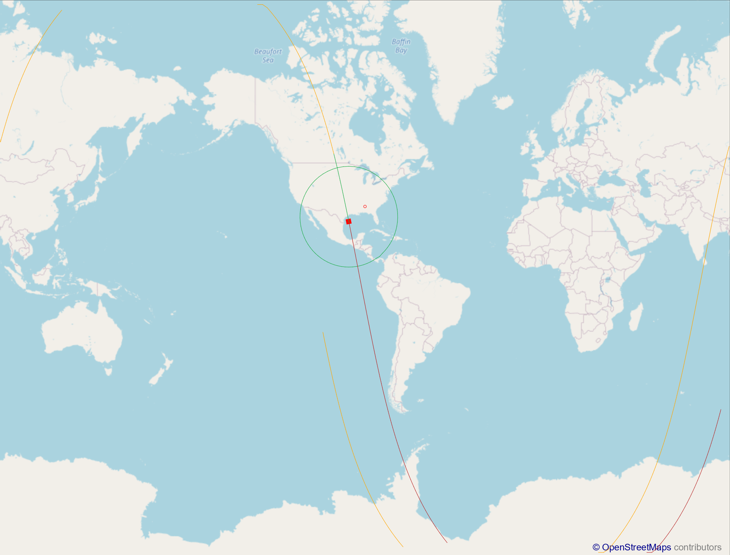
Occupying the majority of the center zone is the map view which plots the current pass on an uncluttered world map centered either on the ground station longitude or a longitude set by Settings->Preferences->Map->Center Map. The center longitude set in Settings->Preferences->Map->Map Center Longitude.
The map is trimmed at both poles based on the width of the center view. Satellite orbit paths are adjusted when the satellite is beyond the visible map image.
Different map images can be selected at Settings->Preferences->Map->Map Image.
The current pass plot is plotted and scaled to fit the available visible area when the pass location is within one of the non-visible areas of the map.
The current pass is plotted using a simple red cubesat image to represent the current position of the satellite.
Different colors are used to indicate the state of the pass as well as the direction of the pass.
- Amber
- The upcoming path for the satellite.
- Green
- The active portion of the pass where communication is possible from the ground station.
- Red
- The portion of the pass the satellite has covered.
The width of the path plot is set in Settings->Preferences->Map->Pass Path Width with the default set to Narrow.
The ground station location and location of any footprints are plotted based on location. If Settings->Preferences->Map->Satellite Footprint is set to Satellite the ground coverage track is plotted based on the position of the satellite. If set to NASA the satellite coverage track is plotted centered on the ground station and any active concurrent pass locations, remaining static for the duration of the pass.
If Settings->Preferences->Map->Satellite Footprint is set to Satellite the satellite footprint or ground coverage area is drawn center on the satellite.
If Settings->Preferences->Pass->Satellite Footprint is set to NASA the satellite footprint or ground coverage area is drawn centered on the ground station and as well as any Footprints defined and activated in Settings->Preferences->Map->Footprints.
Footprints provide a convenient visual indication of the possibility of communication between locations. Communication is possible in the overlapping areas.
Right Zone
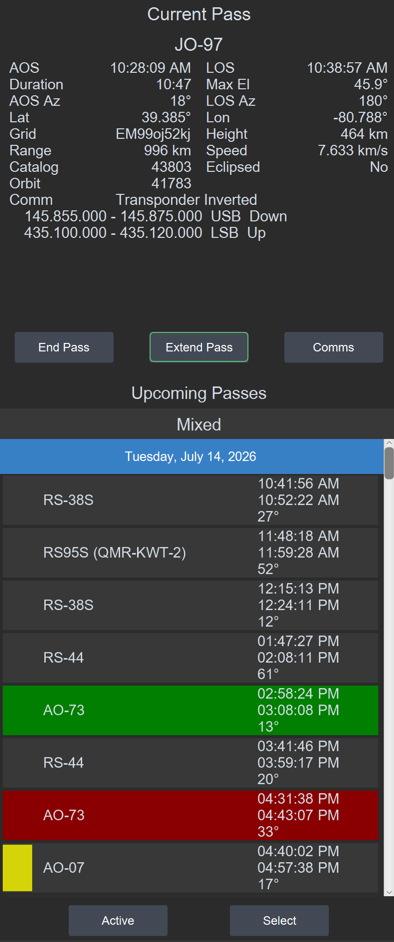
The Right zone displays the current satellite pass which may be active or inactive, upcoming passes and controls to manage passes.
A Satellite Pass is a pass of a selected satellite that meets the minimum elevation requirement for the current ground station location. Minimum elevation is set in Setting->Preferences->Pass->Minimum Elevation. The pass contains information used to direct the rotor controller to track the satellite and calculate doppler shift changes affecting selected radios.
The Current Pass is the next pass available from a user selected list of satellites. The Current Pass becomes available when the previous satellite pass reaches LOS and may be some time in the future based on selected satellite and pass selections.
The Current Pass becomes active when the Start Pass control is clicked, the Auto Pass Select feature was enabled in Settings->Preferences->Pass->Auto Pass Select or the pass manually set to Schedule. Only when the pass is active will OsTrax track the satellite using the selected rotor and radio(s).
All Pass times are in local time format in 12 or 24 hour form which can be changed in Settings->Preferences->Pass->Pass Time Format.
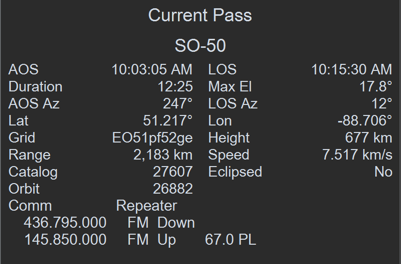
The Current Pass view details pass information including static items and dynamic items that change as the pass progresses.
The satellite name is displayed at the top of the view followed by static and dynamic information.
The satellite name color indicates the pass status for the satellite.
- Amber
- The satellite is below the horizon approaching AOS.
- Green
- The satellite is above the horizon but has yet to reach AOS or has been not selected for tracking.
- White
- The satellite is above the horizon and is being tracked.
- AOS
- The estimated Acquisition Of Signal time as local time in 12 our 24 hour form. This is the time the satellite appears above the horizon.
- LOS
- The estimated Loss Of Signal time as local time in 12 or 24 hour form.
- Duration
- The time the satellite will be in communication range in hour-minutes-second.
- MaxEl
- The estimated maximum elevation the satellite will reach during the pass.
- AOS Az
- The approach azimuth in degrees at AOS.
- LOS Az
- The departing azimuth of the satellite in degrees at LOS.
- Lat
- The current latitude of the satellite in Decimal Degrees.
- Grid
- The current Gridsquare or Maiden head position of the satellite.
- Height
- The current height of the satellite in units set in Setting->Preferences-General.
- Distance
- The distance from the ground station to the satellite in units set in Setting->Preferences-General.
- Speed
- The current speed of the satellite in units set in Setting->Preferences-General.
- Catalog
- The satellite catalog number.
- Eclipsed
- Yes indicates the satellite is in eclipse (not illuminated by the Sun).
- Orbit
- The satellite orbit number for this pass.
- Comm Link
-
The selected communication link for the satellite.
Comm Link displays the comm link type and relevant uplink and downlink frequency and mode.
FM Repeater comm links list any required uplink tone which is automatically set in the radio(s).
For Transponder comm links the uplink and downlink frequences indicate the upper and lower frequency range based on the comm link passband width.

- End Pass
- Ends the current pass replacing it with the next available pass. If the pass was active, tracking is halted.
- Start Pass
-
Activates the current pass and makes the pass available for
tracking. Once Start Pass is pressed or the pass Auto Pass Select
started the control changes to Extend Pass.
Each click of the Extend Pass control extends the pass beyond LOS by the amount set in Settings->Preferences->Pass->Extend Pass Time and is cumulative. The pass can be extended at any point during the pass including the LOS Hold time period at the end of the pass, set in Settings->Preferences->Pass->LOS Hold Time. - Comms
-
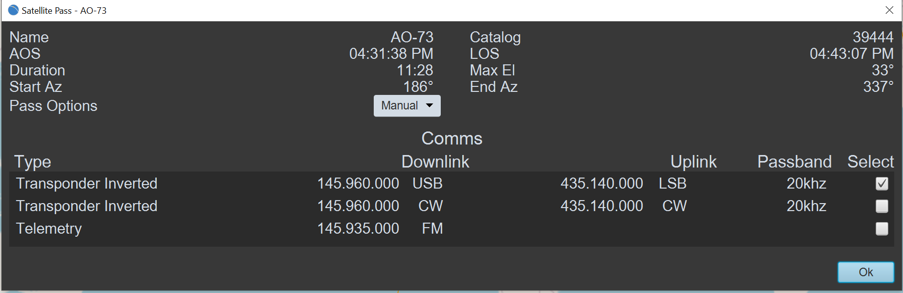
Selects a Comm Link for the satellite to actively control the radios and calculate doppler shifts based on the comm link frequencies.
A Comm Link is selected by clicking the checkbox selection for the comm link and clicking ‘Select’. If the current pass is active (between AOS and LOS) the radios are switched to the comm link settings and doppler shift calculations begin based on the comm link frequencies.
If the comm links specifies frequencies not supported by the selected radios, a warning is issued and the radio controls disabled. Once a valid comm link is set, the radios can be reenabled using the ‘Radio’ control in the bottom zone.
The selection is valid only for the current pass.
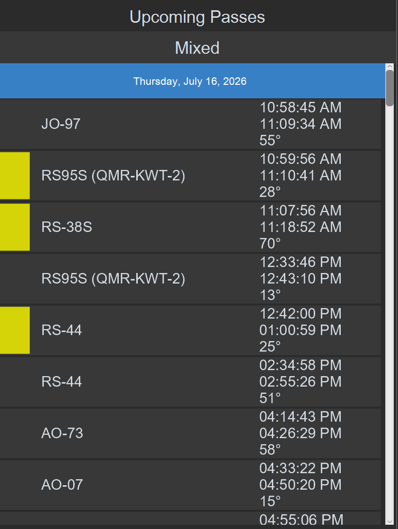
List future passes for active satellites for the time period specified in Settings->Preferences->Pass->Pass Look Ahead. Satellite to be evaluated are from the Active Satellite Group for the current ground station. The Active Satellite Group for a ground station is managed and selected with Settings->Satellite Groups.
The name of the Active Satellite Group for the ground station is listed above the pass list entries.
Pass List Entries describe upcoming satellite passes in chronological order.
Note: Changes to individual passes as a result of changing pass options may be reset if orbital element sources are updated or if preference settings that affect pass selection are changed. Source updates and preference changes should be coordinated with pass selections.
Pass List Entry
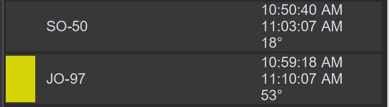
A Pass List Entry describes an upcoming pass listing the name of the satellite, AOS and LOS times and the maximum elevation the satellite will reach.
A status area on the left uses color to indicates the relative timing of the pass as it relates to passes above it in the pass list.
- The pass AOS time is beyond the LOS time of the previous list entry
- The AOS time for the entry is after the AOS time and before the LOS time of the previous entry indicating the available pass duration may be shorter than the calculated duration.
- The AOS time for the entry is after the AOS time of the previous entry and the LOS time for the entry is prior to the LOS time for the previous entry indicating the pass will never become active unless the previous entry is excluded as an available pass or ended once started.
If a listed pass is overlaid by the previous as described above and the listed pass has been set to automatically become active a one time information status message is issued with audio indication when the overlaid pass reaches AOS.
Further information and pass control are obtained by right or left clicking on the pass entry.
- Right Click
- Clicking and holding the right mouse button with the mouse on an entry will display the active path for the pass on the map until the mouse button is released.
- Left Click
-
A left click on an entry will open the Satellite Pass dialog
that will remain open until the Ok control is clicked and
display the active path for the pass on the map.
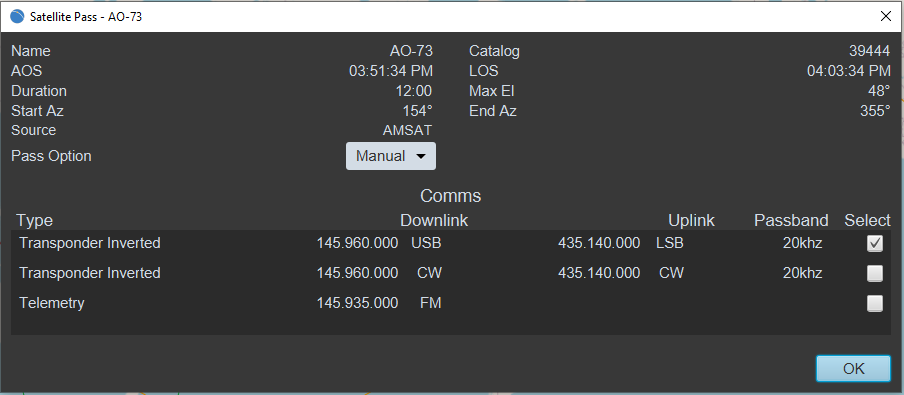
Satellite Pass displays similar information as the Current Pass view and provides options to alter the pass status and change the comm link for the pass or optionally, permanently.
The Pass Options selector provides options to alter the pass status.User defined communication links Menu->Settings->Sources->User Comms are highlighted for easy identification.- The pass must be manually started with the Start Pass control.
- Automatically starts the pass at AOS.
-
Removes the pass from consideration.
Exclude can be utilized to remove a prior pass from active consideration if the following pass status area is Red indicating the full duration of the pass cannot be accomplished.
Manual Select Exclude

- Active
-
List satellites in the current Satellite Group for the ground station by
name, catalog number and Orbital Element source.
From the list, entries can be selected for permanent deletion from the satellite group or a new Satellite Groups created by selecting satellites then clicking the Create control.
Moving the mouse to a list entry and double clicking the left mouse button will display the comm links defined for the satellite.
Clicking the "Select" entry on a comm link definition then pressing the "Select" control will change the default comm link entry for the satellite. - Select
-
Selects satellites from selected Orbital Element sources as entries for the active ground station satellite group. Satellites are selected by satellite name or catalog number.
Multiple satellites with similar names can be selected by entering a portion of the satellite name ending with the one of two wildcard characters. Only one wildcard character can be entered.
The wildcard characters are:
* Match wildcard. Matches any satellite name that begins with the characters prior to the wildcard character.
# Contains wildcard. Matches any satellite name that contains the characters prior to the wildcard character.
If multiple satellites with similar names resulting from the wildcard search are found, they are included in the list of satellites and can be selected as satellite group members.
With no satellite name or catalog number entered, satellites can be selected from the selected Orbital Element sources using the Communication Type Selectors which will search for any satellite communication link matching at least one of the selections. Selecting satellite by communication link types can produce a lengthy result list.
If a resulting satellite entry matches a satellite currently in the active ground station satellite group, a Duplicate Selection dialog will prevent any of the listed satellites being added to the satellite group. Reselecting and eliminating the duplicate satellites is necessary.
Moving the mouse to a list entry and double clicking the left mouse button will display the comm links defined for the satellite.
Clicking the "Select" entry on a comm link definition then pressing the "Select" control will change the default comm link entry for the satellite.
Bottom Zone

The bottom zone contains operational controls and the message area where information relative to the operation status of OsTrax and relevant satellite pass information is displayed.
Controls- Radio
-
The Radio control enables and disables the physical connection to any
attached radios.
Disabling the radios closes the physical connection to the radio halting message exchange.
Enabling the radios opens the physical connection to the radios.
Certain operations such as selecting a new radio automatically disables any open connection as the selection may change the physical connection. Error conditions with the physical connection will disable the radio connections, writing an error message to the message area. - Rotor
-
The Rotor control enables and disables the physical connection to any
attached rotor controller.
Disabling the rotor closes the physical connection to the rotor halting message exchanges.
Enabling the rotor opens the physical connection to the rotor.
Certain operations such as selecting a new rotor controller automatically disables any open connection as the selection may change the physical connection. Error conditions with the physical connection will disable the rotor connections, writing an error message to the message area.
During an active pass with Rotor Control enabled, Manual movement, Park or Stop will disable the Rotor Control and an appropriate warning status message issued. - Clear
- Clears the message area.
- Log
- Opens the Contact Log dialog to create a contact log record. If the control is pressed during an active pass, relevant satellite information is automatically populated.
User Satellite Tracking
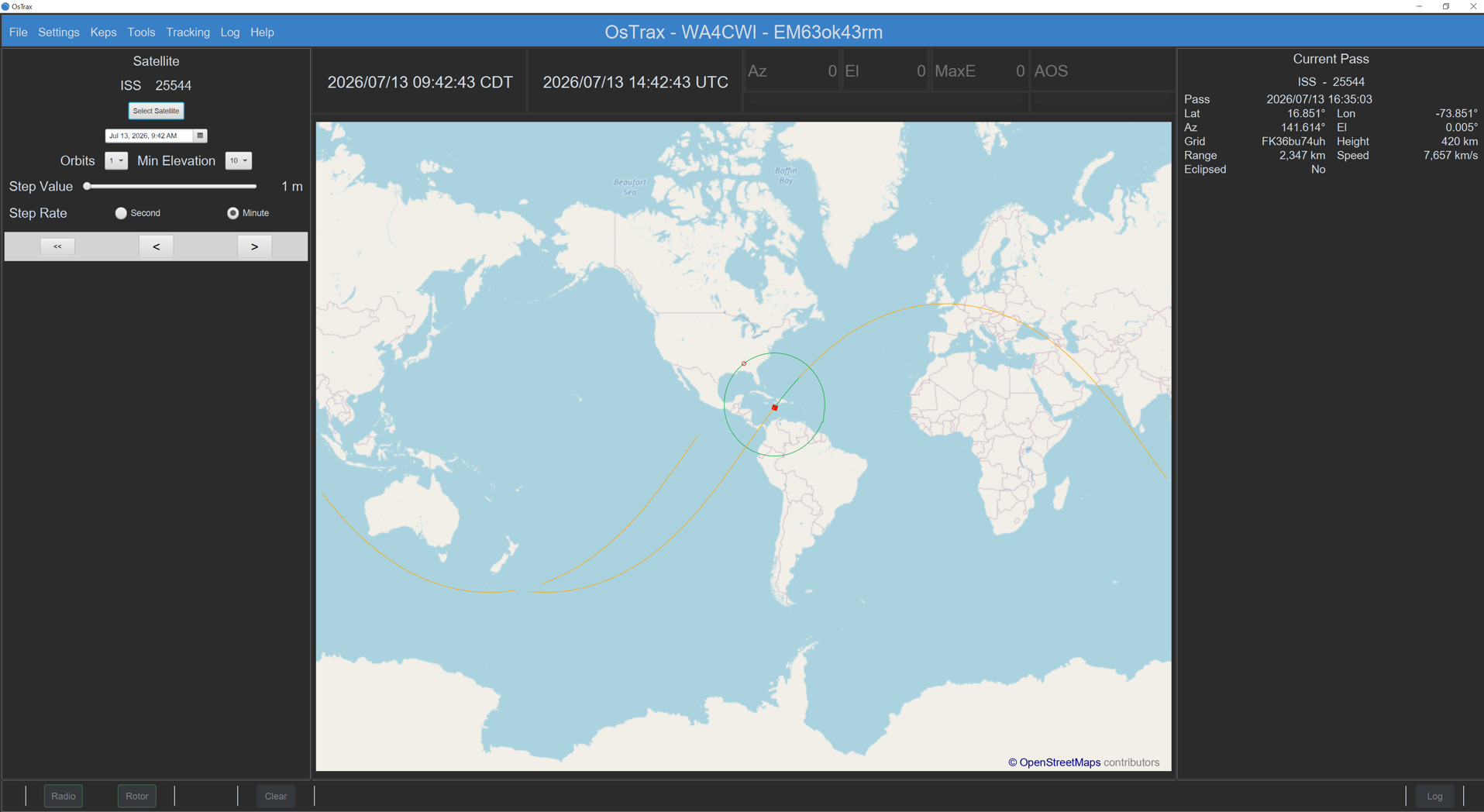
User Satellite Tracking plots the orbital path of a satellite under user control. The user is able to move the satellite forward and backward within its orbital path and read path pass information derived from the satellite position.
Orbital path and satellite positioning is displayed as with normal satellite passes and the pass information is displayed using the familiar satellite pass format.
User Satellite Tracking is helpful when determining the actual orbital characteristics of a new satellite, checking out a satellite or diagnosing problems with existing satellites.
Tracking a Satellite
The satellite is selected by pressing the Select Satellite control which uses the Satellite Selection dialog to locate the requested satellite.
The 'Matching' wildcard character '*' can be entered as the last character of the satellite name to produce a list of all satellites with names starting with and matching the entered characters up to the matching wildcard character. The 'Includes' wildcard character '#' as the last character in the entered name will result in a list of all satellite names that contain the charactes up to the wildcard character.
The satellite of interest can be selected from the list.
The Two-Line Element (TLE) from that selection determines the orbital characteristics of the tracked satellite.
After selection, the satellite name and satellite catalog number are displayed.
Satellite Tracking Controls
- Select
- Selects satellite to plot based on date-time setting.
- Date-Time Selector
- Selects starting date and time for satellite plot.
- Orbits
- Number of orbits to plot for satellite.
- Minimum Elevation
- Sets the minimum elevation for a displayed pass. The default is 10 degrees.
- Step Value
- The difference in time between successive positions along the satellite path with manual or automatic stepping.
- Step Rate
- Sets the step value in units of seconds or minutes.
- Step Controls
-
Satellite Step Controls
- Reset
- Sets the satellite orbit path and starting point to the selected date and time.
- Back
- Steps the satellite position back one Step Rate interval.
- Forward
- Advances the satellite position forward one Step Rate interval.
The date-time value is set to the current date-time when User Tracking is started. The Daylight Terminator will show on the map if enabled.
Pass values displayed in the right zone are position information based on the current satellite position along the orbit path as determined by the step controls. The displayed time is the satellite position time.
Note: When switching between normal satellite tracking and user satellite tracking, pass options and selections are reset.
Installation
Installation of OsTrax is operating system dependent.
Operating System Installation provides
instructions to download and install OsTrax for each operating system.
When OsTrax is started for the first-time following installation, the database will
be constructed and initialized, OsTrax configured to default settings, then initial
Orbital Element files and Satellite Profile files are downloaded and installed.
The user is kept informed of the initialization progress with status messages in the
message center on the bottom zone.
Following successful initialization, OsTrax will open with no defined radio or
rotor, the default ground station with one default Satellite Group containing a
single satellite.
Using Settings->Preferences from the Menu Bar in the top zone, a ground
station is defined. The new ground station will create a default Satellite Group
that becomes the active satellite group which may be expanded or new satellite
groups defined, populated with satellites and selected as the active satellite group
from the Satellite Groups menu.
The newly created ground station must be selected by clicking on the entry in the
Select column and pressing the Select button. The selected ground station and
default Satellite Group for the ground station will replace the start-up
definitions.
As needed, radio and/or rotor controllers are defined using the
Settings->Radio Selection and Settings->Rotor Selection menus.
Note: Radio and rotor definitions are ground station
based and changed when a different ground station is selected. It is important to
define an appropriate ground station and select the ground station as active before
defining a radio or rotor. Otherwise, the radio or rotor may be assigned to the
currently active ground station and not be available as expected.
The default ground station and accompanying default active satellite group cannot be
deleted as a safety precaution. Also, an active ground station or satellite group
cannot be deleted until.
For all operating systems, the OsTrax installation is complete requiring no additional file or package installation.
OsTrax is available for macOS Sequoia and above for Intel and Apple ARM M
Series based systems.
OsTrax installs using an Apple Disk Image (.dmg file suffix) file.
The installation file must be compatible with the architecture of the target
macOS system, either Intel x64 or Apple ARM M series.
To install OsTrax, double-click on the installation file (.dmg suffix), then
left click on the OsTrax icon and slide it to the Applications folder icon.
If the installation is a reinstall or upgrade an option dialog will be
presented indicating OsTrax is currently installed and requestion
installation direction. Click on the Replace control to overwrite and
replace the existing version.
When first started, OsTrax creates a directory at
%user%/Library/Application Support/OsTrax to locate OsTrax
specific files.
If OsTrax is uninstalled, this directory must be manually deleted.
OsTrax uses the Microsoft Windows Installer, an installation and configuration
service provided with Windows with the file suffix .msi.
The .msi file is executable and guides OsTrax installation providing user
customization for location and access.
When first started, OsTrax creates a directory at
C:\Users\%user name%\AppData\Roaming\OsTrax to locate OsTrax
specific files.
If OsTrax is uninstalled, this directory must be manually deleted.
When first started, OsTrax creates a directory at /home/%user id%/OsTrax to locate OsTrax specific files.
If OsTrax is uninstalled, this directory must be manually deleted.
A registration code must be obtained and entered into OsTrax when first started after installation.
To obtain a registration code, go to the OsTrax web site
OsTrax.com and click on the
Dashboard menu item at the top of the screen.
Create an account, then select the type of registration desired which may be a
15-Day, unlimited trail or better, a permanent license.
Note:
All personal information entered is respected and considered private. It
will not be sold or used for any commercial purpose. It may be used to send
important OsTrax information such as update notifications.
OsTrax is licensed by operating system. Select Trial or License to
obtain a Registration Code. Licence requires payment that must be completed
before the Registration Code can be obtained.
The Registration Code will appear on the Dashboard. Registration Codes are
unique and can only be used on the selected operating system.
A Trial is for 15 days with no limits on OsTrax function. Each time OsTrax
is started, the number of days remaining in the trial is displayed on the
start-up banner screen.
When the trial expires after 15 days, OsTrax will pause at the the banner
screen and wait for a permanent licensed registration code to be entered.
During the trial period, a permanent license registration code can be
obtained by signing into the Dashboard and obtaining a permanent license.
The permanent license code is entered into OsTrax by going to
Menu->Help>About and entering the code in the
Enter Registration Code box then pressing the
Enter Code control.
The registration code and personal information is not saved when Menu->File->Export backs up settings and selections to an external file. The registration code must be rentered if OsTrax is started with an empty database. The registration code should be saved and it can be obtained by signing into OsTrax user Dashboard.
Instances
Multiple copies of OsTrax can be simultaneously run.
Each copy is known as an Instance with the normal single instance known as the
Default Instance.
Each Instance is independent, sharing only Instance definitions, which allows for unique
configurations on a single machine.
Before multiple OsTrax instances can be started, Instances must be defined in
Settings->Preferences->General->Instances; created or deleted by clicking on
Manage Instances.
To add an instance, click Add and enter a unique name for the instance. The name
must begin with an upper-case alpha character followed by a combination of alphanumeric
characters, including dash - and underscore
_ characters. Spaces are not allowed. The maximum name length is 20
characters.
To delete an instance, double click on the name entry and click Confirm on the
delete confirmation dialog that follows.
When an Instance is deleted, all preference settings and definitions are deleted.
With Instance are defined, at start-up, OsTrax will present an Instance selection dialog
where an instance can be selected.
Only one copy of an instance can be active at a time. If an instance is selected that is
currently active a warning dialog will appear and the start attempt ended.
The selected Instance name will appear on the OsTrax screen at the far right on the top
line. If the instance is the default instance, the name does not appear.
Operation
This section provides guidelines for using OsTrax to track satellites and to make a radio contact or receive information from a satellite.
Satellite Passes
Satellite passes form the basis for all OsTrax activities. Satellite passes are defined
by adding satellites to the active Satellite Group using the Select control at
the bottom of the right zone.
Satellite Groups are created, managed and selected using
Settings->Satellite Group. The name of the active Satellite Group is displayed
above the Upcoming Passes list in the right zone.
Satellites can be deleted from the active Satellite Group or a new Satellite Group
created using satellites defined in the active group by clicking the
Active control.
Current Pass describes the current satellite and
available communications links. Current does not indicate the pass is active, that is
controlling the radio and rotor. At LOS, the pass is deleted and the next available pass
in the Upcoming Pass list promoted to current. The current pass orbit is plotted even
when the pass is not active.
Clicking the End Pass control immediately terminates the pass and promotes the
next available pass in the Upcoming Pass list to become the current pass.
Unless the pass was manually Selected or all passes selected in
Settings->Preferences->Pass->Auto Pass Select the Start Pass
control must be pressed for the pass to become active. Once the pass is active and the
satellite has reached AOS or AOS Prestart, the radio and rotor begin updating based on
the current position of the satellite.
With the pass active, the Start Pass control changes to Extend Pass. Each
press of the Extend pass control extends the pass beyond LOS by the time period
set in Settings->Preferences->Pass->Extend Pass Time. Extended Pass times are
cumulative, each press of the control extends the LOS time by the settings value.
Upcoming Passes list future satellite passes in
chronological order based on satellites defined in the active Satellite Group with
modifications indicated.
Pass Priority
Satellites with similar passes over a ground station will frequently create situations
where one pass must be preferred. OsTrax uses Pass Priority to draw attention to
priority situations allowing the operator to make decisions as to which satellite pass
to favor.
Each entry in the Current Pass list contains a color status area that indicates
pass conflict status.
Yellow indicates the pass starts after the pass before it in the list but ends
after the prior pass ends (LOS) meaning some of the pass may be usable.
Red indicates the pass starts after the pass before it and ends before the prior
pass ends meaning the pass will not be usable.
The absence of any color indicates no pass conflict exist.
Pass priority can be altered by left clicking the pass entry and changing the
Pass Options selector.
For example, if the desired pass status is Yellow or Red and the pass ahead is of no
interest, changing Pass Options to Schedule on the desired pass and
changing Pass Options to Exclude on the pass above it will result in the
excluded pass being ignored and the desired pass automatically started.
If the status is Yellow, setting Pass Options to Schedule will
automatically start the selected pass when the one above it in the list ends.
If the undesired pass is the Current Pass, changing Pass Options to
Schedule and clicking the End Pass control will terminate the Current Pass
and automatically start the the selected pass at the appropriate time.
AOS Prestart
AOS Prestart is the time before AOS for a started pass when OsTrax begins tracking the satellite, moving the rotor to the anticipated AOS position and if Menu->Settings->Preferences->Radio->Radio Active set to Pass Only begins updating the radio if the radio Control is enabled.
AOS Prestart is set at Menu->Settings->Preferences->Pass->AOS Prestart Time and specified in minutes.
Radio and Rotor
It is assumed OsTrax has been installed and a radio and rotor controller defined as
described in Installation.
With a radio and rotor controller defined, when OsTrax is started the Radio and
Rotor controls at the bottom of the screen should be enabled indicated by the
control being highlighted. A control not enabled is an indication that the serial
connection is not correct which will be indicated by an error message in the comport
status for the control.
Note:
Even with an established connection, communication with the device will fail if the
Baud Rate selection for the device is incorrect or an incorrect Comport was
selected.
Radio Control
Located in the Radio view, Control selects if the radio is to be managed by
OsTrax, configuring the radio for a satellite communication link and sending and
receiving frequency updates. Control is disabled by default and must be enabled
before OsTrax can send control messages to the radio. During operation,
Control can be disabled to temporarily stop OsTrax updating the radio.
The Set control is activated when Control is enabled. Clicking
Set sends control commands to the radio to set the radio frequency to the
communication link frequency. For Transponder communication links the frequency is set
to the passband center frequency.
Doppler Shift, Satellite Frequency, Radio and Offsets remain
disabled until an active satellite pass begins.
When the satellite pass ends, these areas disabled until the next active satellite pass.
Rotor Azimuth Change
Most satellite rotors are elevation over azimuth where the elevation rotor is positioned on top of the azimuth rotor. These rotors present a problem with high elevation passes known as the Keyhole problem.The Keyhole problem occurs as the elevation increases, the azimuth rotor must make greater movements as the satellite is passing overhead to track azimuth changes resulting in additional wear to the azimuth rotor.
The Keyhole effect results in loss of signal as the azimuth rotor attempts to track the satellite requiring near 180 degree azimuth changes depending on the peak elevation. At lower elevation peaks the azimuth rotor cannot move fast enough to fully track the satellite. As the elevation approaches 90 degrees (vertical) the azimuth position become irrelevant and the azimuth rotor can be commanded to make less frequent changes to reduce wear.
The Setting->Preferences->Rotor->Azimuth Change setting determines if the azimuth rotor tracks using Deadband differences or uses an adaptive-predictive algorithm to reduce the number of azimuth adjustments at higher elevations.
Satellite Selection
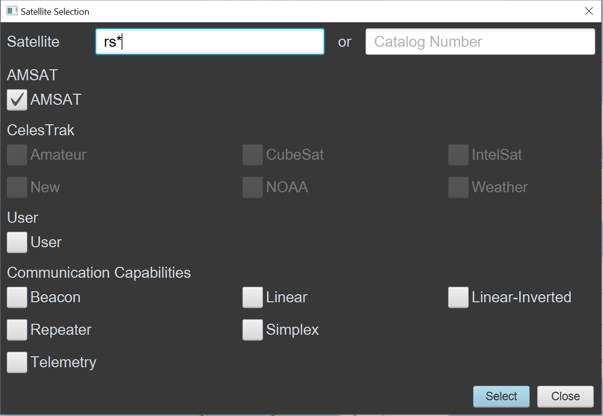
Satellite Selection uses selected options to search for a list of all satellites matching the selection criteria. Various versions of the selection dialog are utilized in OsTrax but all share a common look and feel.
Satellite Selection Options
- Satellite Name or Catalog Number
-
Search for a satellite based on name or catalog number or search by
communication capability.
For name or catalog number searches, only one of the search arguments can be entered and no communication capabilities can be selected.
For communication capability searches neither the satellite name or catalog number arguments can be entered.
The satellite name entered may be terminated with one of two wildcard characters and the returned satellite list will contain all satellites meeting the wildcard criteria. Only one wildcard character can be used.
The wildcard characters are:
* Match wildcard. Matches any satellite name that begins with the characters prior to the wildcard character.
# Contains wildcard. Matches any satellite name that contains the characters prior to the wildcard character.
The wildcard character can only appear at the end of the satellite name or to list all satellites in a selected source the wildcard character is entered as the only entered character. - Orbital Element Source
-
The selected sources are searched in listed order. A list of all satellites,
including duplicate entries, meeting the selection criteria is displayed.
At least one orbital element source is required and selected sources are remembered for faster selection on subsequent invocations. - Communication Capabilities
- When searching for a non-specific satellite (satellite name and catalog number omitted) returns a list of satellites matching the selected communication capabilities.
The selection results are displayed in alphabetical order by name. Selecting a satellite will add it to the Active Satellite Group when Add control is clicked if the satellite is not currently a memeber of the group. Unselecting a satellite will remove it from the Active Satellite Group when the Add control is clicked..
Satellite Groups
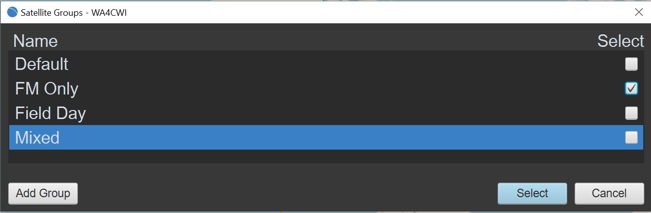
Satellite Groups are named list of satellites, grouped together for operating, contest, telemetry, remote, Field Day or any desired combination.
When a Satellite Group is selected, the satellites in the group replace the current satellite list and passes for the group's satellites are recalculated.
Satellite Groups are defined for ground stations with unlimited number of Satellite Groups for each ground station.
Each Satellite Group can contain a unlimited number of satellite.
Only one Satellite Group can be active at a given time. The name of the active Satellite Group is displayed above the Satellite Pass List in the right zone.
Creating a Satellite Group
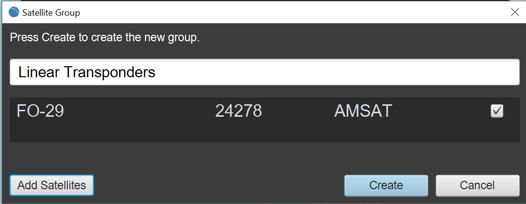
A Satellite Group is created from Menu->Setting->Satellite Group and pressing the Add Group control.
This opens the Satellite Group dialog where the name for the group is entered and optionally, satellites selected to be included in the group.
The Satellite Group name must be unique, begin with an upper case alphabetic character and is limited to 20 characters in length.
Satellites may be added to the group before the group is created or later by editing the Satellite Group.
Satellites are selected using the standard satellite selection process which allows wildcard name selection from different satellite sources and may be selected.
The Satellite Group is created by pressing the Create control which creates the new group for the Ground Station using the selected satellites.
Satellites can be excluded from the new group by unclicking the selection control next to the satellite name.
Editing or Deleteing a Satellite Group
A Satellite Group can be deleted or edited by selecting the group from Menu->Settings->Satellite Groups by double clicking on the list entry.To delete the group, press the Delete control and reply positively to the delete confirmation dialog.
The Satellite Group name can be changed by entering a new, unique name beginning with an upper case alphabetic character, limited to 20 characters in length.
Satellite can be removed form the list by unclecking the selection control next to the satellite name in the list.
New satellites can be added by pressing the Add Satellite control and following the selection process.
All changes become effective when the Update control is pressed.
Supported Radios and Rotor Controllers
Radios
Some radios, capable of simultaneous operation on different bands cannot be
controlled or the frequency determining process does not allow simultaneous control
of the receive and transmit frequencies. With these radios, an update to the
frequencies due to doppler changes can result with the radio transmitting on the
receive frequency. OsTrax cannot determine the transmit state of these radios to
prevent possible satellite interference or damage to user equipment.
Radios are classified as Satellite meaning the radio transmit and receive
frequencies are capable of being simultaneously updated or TxRx, radios that can
operate as transmit or receive, paired with another radio to handle the opposite
function.
Note:
If a radio is powered on after OsTrax starts or after a pass is started, a
radio is selected or a pass started, it is necesssary to recycle the radio
"Control" before OsTrax can communicate with the radio.
Note:
Some legacy radios that utilize the RS-232 serial port protocol for control
(CAT) function require the use of RTS/CTS flow control.
Use of any extension cable between the radio and a USB serial port adapter
must include provisions for the RTS/CTS signals. Simple, three wire, extensions
cables will not pass the correct signaling and prevent CAT control of the radio.
Note: Icom IC-9700
In IC-9700 Menu->Set->Connectors->CI-V->CI-V DATA Echo Back to OFF. In IC-9700
Menu->Set->USB Send/Keying->USB SEND to OFF
Note: Yaesu FT-736
The FT-736 is an older radio with limited control (CAT) capabilites relating to
band changes and primarily the inability to read the receiver VFO using CAT.
When using a FT-736 with OsTrax a remote receiver VFO view appears at the bottom
of the left zone which is used to control the FT-736 receiver VFO and the tuning
contol on the FT-736 should be ignored. Changing the receiver frequency using
the FT-736 receiver will not update the OsTrax receiver frequency and will be
overwritten on the next CAT update.
Note: Yaesu FT-847
The FT-847 has a firmware issue when manually tuning the receiver with a
Passband communication link in that the receiver will occasionally jump to an
out of passband frequency. The only way to prevent this from occurring is to
disabling the radio Control while tuning then reenabling
Control once a receive frequency has been selected.
Setting Menu->Settings->Preferences->Radio->Passband Edge Warning
On will provide an audible and visual warning in the message
area if the FT-847 experiences this problem.
| Satellite | The radio operates in full-duplex satellite mode (simultaneous receive and transmit). |
| TxRx | The radio functions only as a receiver or as a transmitter. |
| Receive Only | The radio functions only as a receiver. |
| Transmit Only | The radio functions only as a transmitter. |
Radios
-
Icom
-
IC-705 TxRx -
IC-706 TxRx -
IC-745 TxRx -
IC-820 Satellite -
IC-821 Satellite -
IC-905 TxRx -
IC-910 Satellite -
IC-5100 TxRx -
IC-7000 TxRx -
IC-7001 TxRx -
IC-9700 Satellite
-
-
Kenwood
-
TS-790 Satellite -
TS-2000 Satellite
-
-
SDR#
Requires OsTrax SDR# Plugin.-
Airspy Receive Only -
FUNcube Pro Receive Only -
SDRPlay Receive Only
-
-
Yaesu
-
FT-736 TxRx -
FT-847 Satellite -
FT-857 TxRx -
FT-897 TxRx -
FT-991 Satellite
-
SdrSharp (SDR#) Plugin
SDR# receivers use the OsTrax SDR Plugin available from the OsTrax github site
(https://github.com/ostrax).
OsTrax manages the SDR# receiver, setting the communication link modulation mode
and adjusting receiver frequency due to doppler changes.
With passband communication links and with the SDR# Receiver paired with a
transmitter, altering the frequency on the SDR# receiver alters the transmit
frequency according to the communication link characteristics.
The plugin has been tested using Airspy, FunCube Pro and SDRPlay receivers using
SDRSharp as the controlling software.
To install the OsTrax SDR# Plugin.
- Create a folder called "OsTrax Controller" in the "Plugins" folder of SDRSharp.
- Download the SdrSharp.OsTraxController.dll file from the OsTrax github site (https://github.com/ostrax) and place it in the OsTrax Controller folder created in the step above.
- Start SDRSharp. The plugin should be listed and available for use.
- With the plugin installed and SDRSharp running, determine the virtual comport for the plugin.
-
From Settings->Radios in OsTrax;
- Select SDR# as the receiver.
- In the Comport drop-down list, select the serial port for the SDR# controller.
- In the Baud Rate drop-down list, select 115200 as the communication rate.
- Click Select to complete the selection.
- Start the OsTrax Controller plugin in SDRSharp.
- When the next active satellite pass occurs, the OsTrax Controller display in SDRSharp will show the satellite name, modulation mode and receive frequency.
Radio Selection
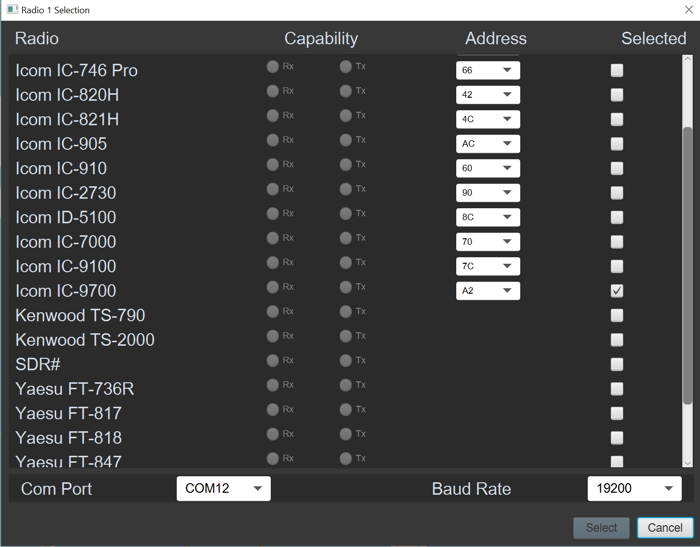
Radio selection is made using Menu->Settings->Radio 1 and/or Radio 2.
Radio 1 is the normal selection when a single radio is in use.
A total of two radios can be selected for simultaneous operation. If two radios
are selected, the first radio will be designated as Downlink (receive) only and
the second Uplink (transmit) only.
Radio 1 must be selected before Radio 2 can be selected. Radio 2 must be
deselected (set to No Radio Selected) before Radio 1 can be deselected or
the Radio 1 selection changed.
Radios defined as TxRx do not have satellite capability and can only send or
receive. Send or receive for TxRx radios is set by selecting one of the
Capability options on the list entry for the radio which is only
available for TxRx radios.
For a list of all radios supported by OsTrax refer to
Supported Radios.
A radio is selected by clicking the appropriate Selected column entry
which will replace any prior selection.
Next the comport for the radio is selected from the Comport selection box and
the Baud Rate for the port and radio set to match the baud rate setting in the
radio's menu or as indicated in the radio user manual.
For Icom radios, the radio address must be set to match the physical radio
address set in the Icom radio menu. OsTrax displays the default address defined
by Icom for the radio.
Once the radio selection is complete (radio selected, comport and baud rate set)
the Select control will highlight. Clicking the control completes the
radio selection.
Reselecting a Radio
Once a radio has been selected the Select control is deactivated to
prevent inadvertent selection. The control is activated when either the radio,
comport baud rate or radio address is changed.
Rotor Controllers
Rotors are controlled by selection a rotor controller. OsTrax has no knowledge of
the rotor or rotors controlled by the selected controller.
It is the user’s responsibility to configure and correctly define rotors attached to
a controller for azimuth and/or elevation control.
Rotor Controllers
-
AlfaSpid
- Rot1Prog
- Rot2Prog (MD-01, MD-02, MD-03)
-
EasyComm
- EasyComm 3
-
Green Heron
- RT-21
-
Yaesu
- GS-232
- GS-232A
- GS-232B
Rotor Selection
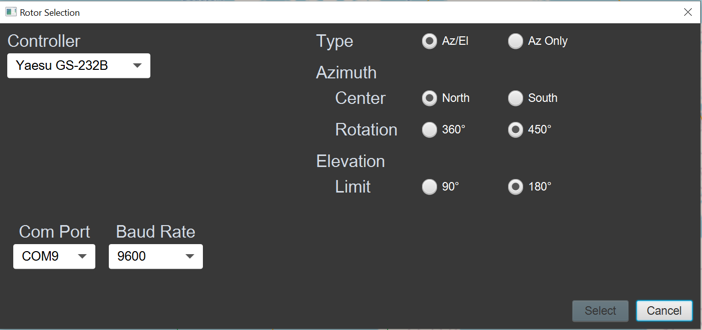
Rotor controller selection is made using Menu->Settings->Rotor Selection.
A rotor controller is selected by clicking on the controller entry in the Controller box then selecting the appropriate Comport and Baud Rate for the controller from the selection boxes.
For a list of all supported rotor controllers, refer to Supported Rotor Controllers.
When the controller, comport and baud rate are selected, the Selection control becomes available. Pressing the control completes the controller selection.
Setting Controller Options
Note: OsTrax is not able to determine the capabilities of rotors attached to a rotor controller. Incorrect controller definition may lead to rotor and/or cable damage. It is the responsibility of the person defining the controller to ensure the controller definition matches the physical capabilities of any attached rotors and cables.
Configuration options are determined based on the capabilities of the selected rotor controller.
- The rotor controller can be configured to be Azimuth only or Azimuth and Elevation.
- The controller can center North or South. If South is selected, the maximum Azimuth is automatically set to 360 degrees.
- Azimuth can be limited to 360 or 450 degrees.
- Elevation can be limited to 90 or 180 degrees.
- Rotors and controllers that support controller defined azimuth and elevation limits can select Rotor to make use of the feature.
- Precision sets the degree of azimuth and elevation positioning for rotors and controllers that support fine grained precision.
Reselecting a Rotor Controller
Once a rotor controller has been selected the Select control is deactivated to prevent inadvertant selection. The control is activated when either the controller, comport or baud rate is changed.
Controller Notes:
The Green Heron RT-21 controller requires two USB ports which are made available when the controller is selected. The first USB port is the Azimuth controller and the second, the Elevation controller.
Rotors and controllers that support software set azimuth limits must ensure the physical rotor and all cables are capable of the selected rotation limits.
The LVB Tracker and Fox Delta controllers should use the Yaesu GT-232 controller selection and set the Baud Rate to 9600.
Colors
OsTrax uses colors to highlight items of interest like satellite passes or to draw attention to specific information or conditions.The colors mentioned in this document are the common names for colors but the actual color representation is adjusted for visual representation on the map or screen.
OsTrax makes use of different color representations to make viewing easier for those with color vision differing from normal.
These colors can be selected for use at Menu->Settings->Preferences->General->Vision
Visual icons can be enabled to further draw attention to specific information or conditions at Menu->Settings->Preferences->Visual Icons.
The background world map can be changed for map colors more applicable for alternative color vision at Menu->Settings->Preferences->Map->Map Image
The width of the satellite pass plot can be set at Menu->Settings->Preferences->Map->Pass Path Width to better highlight the path.
Contact Log
OsTrax is not a contact logging system. It generates contact information that can be exported to contact logging systems using the ADIF format.
Contact Logs are managed in OsTrax through the Create Contact and List dialogs.
- Create Contacst
-
Creates contact log entries. The Contact Log Entry form is opened by
clicking Menu->Log->Create Contact or by clicking the
Log control on the Bottom zone.
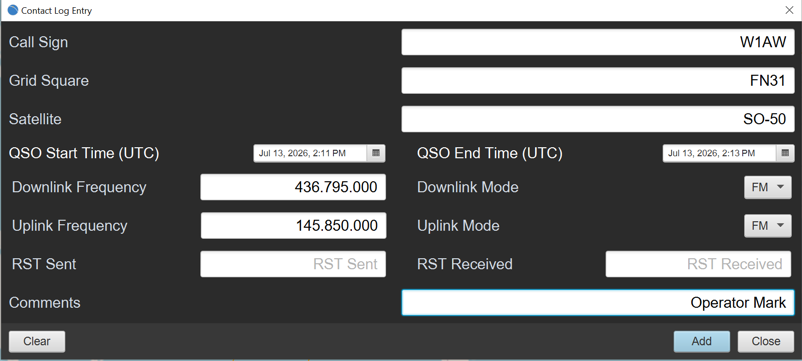
Contact logging allows multiple contacts to be logged for the same satellite without requiring the satellite information to be reentered. Following the addition of a new contact, the satellite information is retained until either the Clear control is pressed or the satellite is changed.
Contact Log information:- The call sign of the contact is required.
- The contact date and time is automatically populated with the current date and time which may be changed using the Date-Time selector.s.
- The current time is in UTC form.
- Uplink and downline frequencies are entered in hertz (hz).
- Mode is selected from the dropdown list and must be CW, FM, LSB or USB.
- Gridsquare is optional but if entered must be in gridsquare format and a minumum of 4 characters.
- RST (sent and received) and session comments are optional entries. Comments are limited to 45 alphanumeric charters including puncuation and sign characters.
-
Satellite naming follows the accepted satellite naming
convention of alphanumeric characters in addition to
Dash, Underscore, Period,
Open and Close Parentheses and Space characters.
The satellite name ISS is automatically converted to ARISS when the Add control is pressed..
Note: Ppulation of satellite information is intended to be used for logging contacts made on the currently active satellite.
If a contact is being logged from a previous satellite pass that is no longer active and another satellite pass is currently active, the auto fill information will come from the active satellite and must be changed to the contact satellite information. Note: Double clicking on the Satellite Name field opens a list of satellites from the current active Satellite Group. Clicking on a list entry populates the contact satellite information fields with that satellite information including the satelliet name.
Manually entering the name of a satellite that is in the active Satellite Group will populate the contact satellite information similar to selecting the satellite from the list. Note: The contact end date and time must be greater or equal to the contact start time. If not, the date and time information titles are highlighted in red and the 'Add' control is disabled.
The Add control is enabled when the basic, required information is entered. Pressing the Add control creates the new contact entry. - List
-
List the logged contacts with an indication if the entry has been
previously logged..
A contact can be edited or deleted by double clicking on the contact list entry which will open the Contact Log dialog allowing information to be updated or the contact deleted. A contact is deleted by clicking the Delete control.
Exports selected contact entries in ADIF 2 or 3 form (.aid or .adx file suffix).Contacts are selected for export by clicking the checkbox on the right side of the entry. Clicking Select All will automatically select all entries.
When at least one entry is selected clicking the Export control will open a file selection dialog to create an export log file with the selected contacts.. A default file name is created but can be changed prior to completing the export.
The ADIF file format is selected from the file open dialog from the ‘Save as type list’. Selection defaults to .adi (ADIF 2). To export in ADIF 3 format, select the .adx entry.
Once the contact entries are exported, a dialog allows selected entries to be deleted by clicking on entries to be deleted. If not deleted, a Logged indicator is set in the entry as notification the entry was exported at a prior time.

Radio Offsets
Satellites may or not transmit or receive on published or expected frequencies due to a variety of reasons including extreme temperature variations, faulty components, component age and component exposure to the space environment, most notably radiation.
Adjustments to uplink and downlink frequencies may be required, often at different values. Furthermore, variations in radios can complicate operations. To compensate, offsets can be applied to the uplink and downlink frequencies.
The uplink and downlink frequencies can be adjusted plus or minus (+/-) 9999hz.
Offsets are applied based on the operational mode of the selected communication link as follows:
- Beacon and Telemetry
- The offset is applied to the receive downlink frequency only.
- FM Repeater and FM Simplex links
- Offsets are applied independently to both the uplink and downlink frequencies.
- Transponder
-
Transponder links are more complicated. Greater variety in operational frequencies
is possible within the passband of the linear transponder, and the uplink frequency
is determined by the downlink frequency. Moving the receiver (downlink) frequency
has the effect of moving the transmit (uplink) frequency based on the
characteristics of the satellite transponder.
OsTrax adjusts the current downlink frequency for doppler shift and sends the changed frequency to the receiver, thereby changing the receive frequency.
OsTrax then calculates the uplink frequency based on the transponder's offset and doppler shift and updates the transmit frequency in the radio to "match" the downlink frequency. In theory, an uplink signal should be precisly on frequency with the observed downlink frequency. In practice, users observe that many radios present an apparent "shift" in frequency due to the variability of how radio manufactures interpret and implement the radio frequency (RF) versus the audio frequency (AF) in transceivers.
For example, Icom radios appear to have an apparent 1700hz shift when comparing RF to AF frequencies. Furthermore, some radios are simply off frequency on one or more bands used for satellite communications. Therefore, some correction or offset becomes necessary.
OsTrax addresses the needed corrections by independently applying offsets to the uplink and downlink frequencies.
An uplink offset is applied to the calculated uplink frequency to compensate for any variations in the satellite receiver-transmitter link.
A downlink offset is applied as a correction to the downlink receiver frequency to compensate for any receiver errors without altering the uplink frequency calculation.
Although both uplink and downlink frequencies can be adjusted it is recommended that only the uplink offset be used to align the uplink frequency to the downlink frequency being received and use the downlink offset to correct for minor tuning requirements, that will not affect the uplink frequency.
Flip Mode
All rotors have defined azimuth end points where the rotor reaches its maximum rotation capability. End points may be defined as North, at 360 degrees or South at 180 degrees.When tracking the path of a satellite, when the end point is reached the rotor controller must move the rotor 360 degrees to reposition the antenna to the opposite end point.
Elevation rotors with 180 degree rotation capability can use flip mode where the azimuth rotor is positioned 180 degrees from the satellite path and the elevation rotor positioned to the opposite end. As the satellite pass is tracked, both the azimuth and elevation rotors move to keep the antenna pointed toward the satellite as it crosses the rotor azimuth end point.
If the rotor controller is defined in OsTrax with Elevation Limit set to 180 degrees and importantly the elevation rotor capable of 180 degree movement, OsTrax will automatically enable Flip Mode for the pass.
Flip Mode is indicated in the Rotor display by highlighting the current Azimuth and Elevation position using the amber color.
For azimuth rotors, such as the Yaesu G-5500, that are capable of rotation to 450 degrees, setting Azimuth Rotation to 450 will enable Flip 450 mode for satellite passes that end beyond the normal azimuth end point by an additional 90 degree limit. Flip Mode 450 is automatically enabled by OsTrax based on the rotor definition and the satellite pass characteristics. The convenience of Flip Mode 450 is prior rotation of the azimuth and elevation rotors by 180 degrees is eliminated.
Note: OsTrax is not able to determine the capabilities of rotors attached to a rotor controller. Incorrect controller definition may lead to rotor and/or cable damage. It is the responsibility of the person defining the controller to ensure the controller definition matches the physical capabilities of any attached rotors and cables.
Satellite Footprints
A satellite footprint is the area of the Earth visible to the satellite or more specifically the area of the Earth surface covered by signals transmitted from the satellite not considering any satellite antenna directivity.The satellite footprint is determined by the height of the satellite above the Earth surface and is not influenced by the radio capabilities of the satellite.
The satellite footprint is centered at the geographic coordinates of the satellite represented by an elevation of 90 degrees from the coordinate position. Signals from the satellite are the strongest at this position and fade in strength as the distance increases from the footprint center location. Due to the configuration and polarization of the satellite antenna and the ground station antenna, communication with the satellite may not be optimum at the footprint center.
OsTrax combines information from the satellite's geographic location and height and plots a best effort calculation of the footprint area and location on the map which some variance at the footprint edges.
Satellite footprints are plotted either centered on the satellite's geographic coordinate location tracking the satellite orbital path or centered NASA style at the ground station geographic coordinates as set in Menu->Settings->Preferences->Map->Satellite Footprint.
Additional footprints are defined and managed at Menu->Settings->Preferences->Map->Footprints.
Double click on an existing footprint to update or delete the footprint.
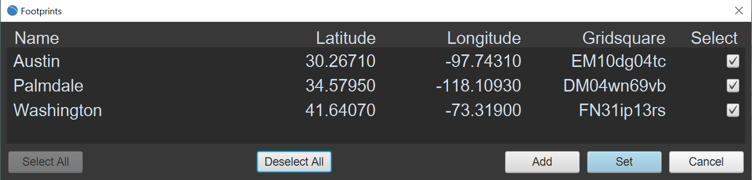
The footprint coverage area if NASA is selected is defined by the height of the current active satellite centered on the footprint coordinates.
For convenience footprints are named and selected or deselected from view at Menu->Settings->Preferences->Map->Footprints.
Footprints can be edited by double clicking the footprint entry. The name or coordinates may be altered or the footprint deleted at which tim eit is deleted from the map if selected.
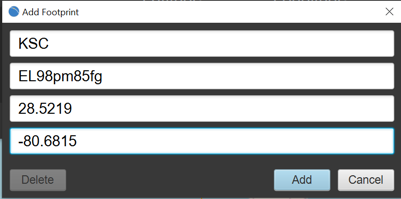
Footprints provide good indications for possible communication between two ground locations if the satellite passes within the overlapping area of the selected footprints (NASA style) or if the satellite footprint covers both footprint locations.
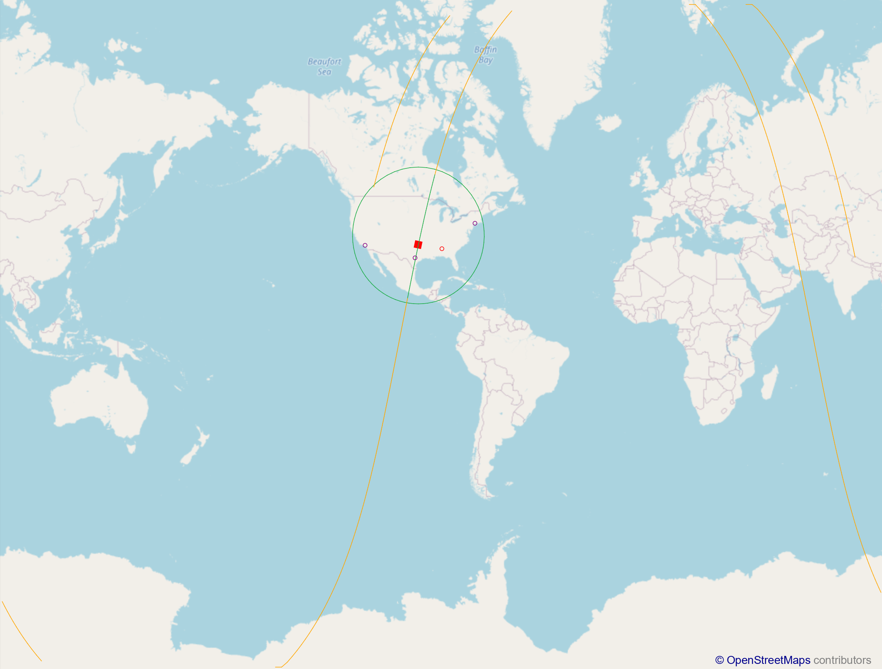
Source Status
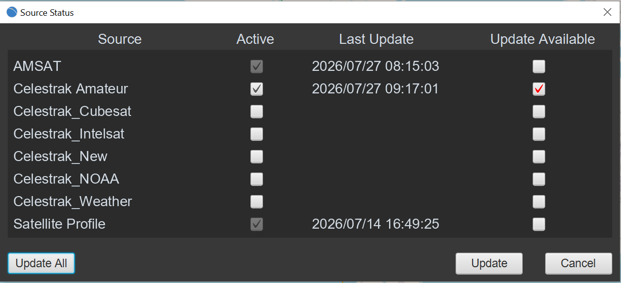
Orbital Elements files describe the orbital characteristics for satellites used to
determine the position of a satellite at a given data and time. Orbital Element files
are the drivers that determine the position of a satellite and determine the reference
location for a satellite to direct a rotor system to aim an antenna toward the
satellite.
Orbital Element files originate from information gathered by government and private
agencies then distributed by various means.
OsTrax uses orbital element sources from AMSAT and optionally CelesTrak, which provide a
wide range of satellites grouped by function type.
Satellites are primarily identified by an assigned catalog number unique to each
satellite. Satellite names can vary based on county of origin. language and official
designations and can be different between different Orbital Element file sources. OsTrax
uses the AMSAT name whenever present for consistency.
Satellite orbits are continually changing based on height, speed, atmospheric drag and
aerodynamic shape. In addition, many satellites can alter their orbits. Frequent updates
must be made to Orbital Element table elements to compensate for orbital changes.
Source Status list the status of each available orbital element source.
A checkmark in the Active column indicates if a source is active and available
for pass selection.
An Orbital Element source may be selected to be included during satellite pass selection
by clicking the Active column entry for the source then pressing the
Update control. Deselection of an element occurs when the Active selection
is removed followed by pressing the Update control.
For active sources, the last update time is inspected at regular times as set in
Settings->Preferences->Pass->Source Update Interval. At each interval, active
Orbital Element sources are inspected for updates and if an update is required an
‘Source Updates Available’ control message appears in the information area on the top
zone which is reset when the updates are complete.
Double clicking the message will initiate the updates or the Update control in
the Sources Status dialog clicked to initiate the update.
The time of the last update is listed for each active orbital element and if an update
is required the checkmark is set in the Available column for the orbital element.
The Satellite Profile Repository, which defines the communication link capabilities for
a satellite, is maintained in the same manner as orbital element sources.
Controls allow updating the Orbital Element and Satellite Profile sources. If an update
is required for any Orbital Element source or the Satellite Profile source the
Update control is enabled. If no updates are required, the
Update All control is made available to force updates of all activeOrbital
Element sources and the Satellite Profile source.
Under normal operating conditions, use of this control should not be necessary.
Note: Previous pass selection as described in
Upcoming Passes may be reset when Orbital
Element files are updated.
Orbital Element updates should be scheduled prior to pass selections.
Pass Predict
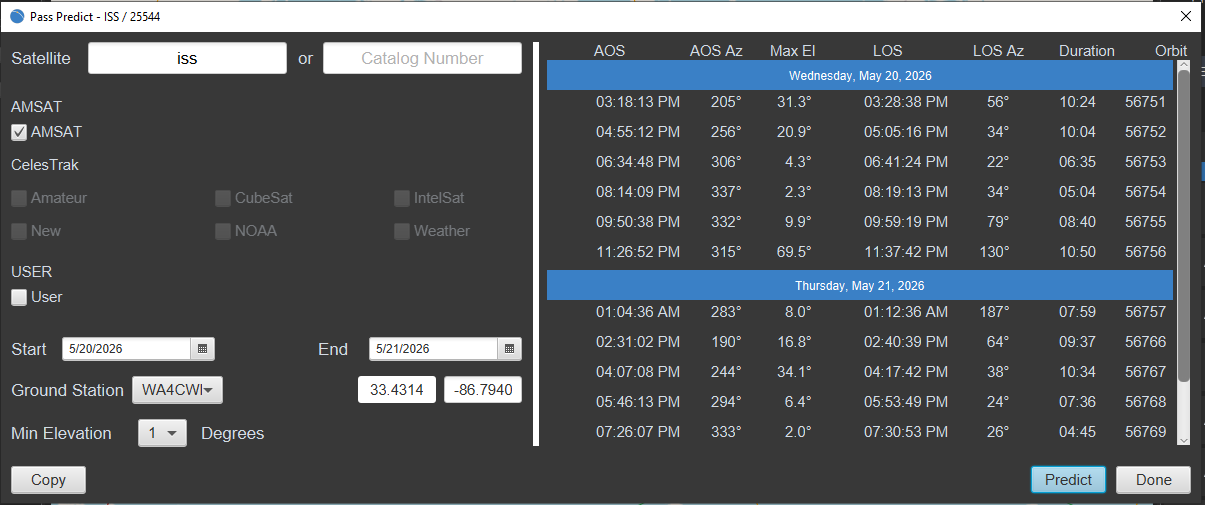
Pass Predict predicts upcoming passes for a satellite. Selection criteria includes satellite name or catalog number, starting and ending dates, minimum elevation and if the passes are centered on the current ground station or a coordinate location specified in decimal digit form.
Either the satellite name or catalog number can be used for the search but not both simultaneously.
The 'Matching' wildcard character '*' can be entered as the last character of the satellite name to produce a list of all satellites with names starting with and matching the entered characters up to the matching wildcard character. The 'Includes' wildcard character '#' as the last character in the entered name will result in a list of all satellite names that contain the charactes up to the wildcard character.
The satellite of interest can be selected from the list.
The satellite may be selected from any one of the active Orbital Element sources. If multiple sources are selected, the first source on the selection list that contains an entry for the satellite will be used.
Start and end dates for the pass evaluation are selectable with times starting and ending at midnight on the selected days.
Clicking the Predict control evaluates the selection criteria and produces a list of satellite passes meeting the selection criteria.
The scrollable prediction list contains an entry for each pass meeting the selection choices listing the AOS time in local time, pass duration, maximum pass elevation and azimuth at AOS.
Pass information from the prediction list can be copied to the operating system clipboard using the Copy command.
With the mouse cursor hovering on a pass list entry, pressing and holding the right mouse button will display the active pass path for the selected pass until the button is released.
Transverters
A transverter is a hardware device used to change the frequency range of a radio by employing a down and/or up converters.The upconverter and downconverter contain an oscillator at a set frequency that performs conversion between the radio transmit and receive frequencies and the satellite frequencies. The oscillator frequency is entered as a parameter to OsTrax which uses it to translate between the satellite uplink or downlink frequencies and the radio frequencies.
It is the responsibility of the operator to correctly enter the oscillator frequencies into the transverter definition and to ensure the defined radios are capable of operating at the translated frequencies.
- Manage
-
Transverters are defined and managed from
Menu->Settings->Transverters->Manage.
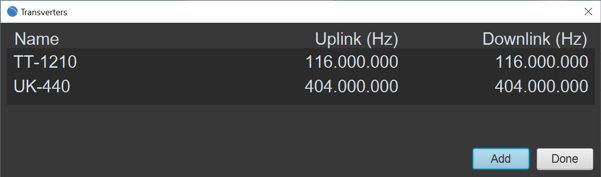
To define a transverter, press the Add control and complete the description.
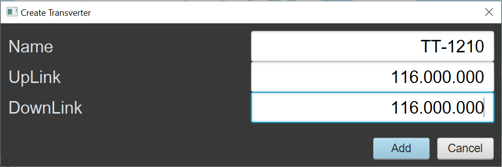
- Name
-
A unique 20 character alphanumeric name (beginning with an upper
case alpha character) with no spaces is used to identify the
transverter.
Dash - and Underscore _ characters are allowed in the name. - Uplink
- The transverter uplink oscillator frequency in hz. If the transverter is downlink only, enter the uplink oscillator frequency as 0.
- Downlink
- The transverter downlink oscillator frequency in hz. If the transverter is uplink only, enter the downlink frequency as 0.
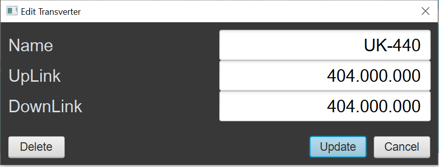
To update or delete a transverter definition, double click on the Transverter list entry and complete the update or deletion.
Any changes or deletion will affect all assignments for the transverter. - Assign
-
Transverters are assigned satellite communication links by selecting
Menu->Settings->Transverter->Assign

To assign a tranverter to a satellite communication link, click on a listed satellite or click the Add control and add a satellite by entering the satellite name or catalog entry in the Transverter Selection dialog and clicking the Select control.
This will open the Transverter Commlink list for the selected satellite and a transverter assigned to the commlink of interest by selecting a transverter from the Uplink and/or Downlink transverter name list.
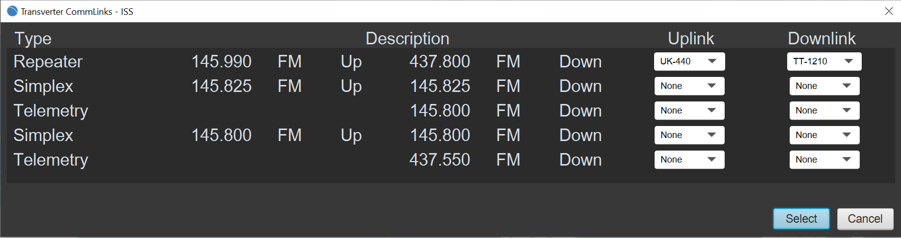
Transverter assignments can be modified or removed by double clicking on a satellite entry in the Transverter Assignment list and completing any modifications in the Transverter Commlink list then clicking the Select control.
To remove a transverter from a commlink up or down link, select None from the transverter assignment list.
When all commlink transverter assignments are removed for a satellite, the satellite entry is automatically removed from the Transverter Assignments list.
Assigned transverters are indicated by including the name of the transverter in the Comms section for a satellite pass.
Due to space limitations, in the Comms section of the Current Pass, the characters TV are inserted in the link description to indicate the presence of a transverter.
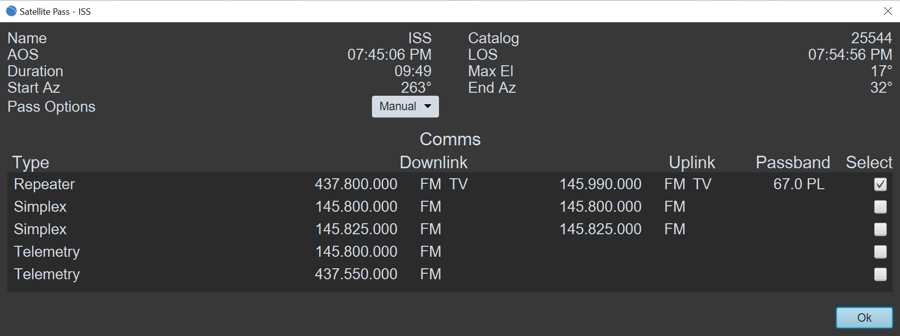
System Requirements
OsTrax is available for the follow operating systems.| Windows | 10 and 11 | x64 |
| macOS | Sequoia 15.2 and above | x86 (Intel) and A64 (Apple M) |
| Linux | Ubuntu 24 and above | x64 |
Note: If OsTrax needs to run continously without interruption, for instance collecting telemetry, it is necessary to disable any operating system power saving feature that puts the computer into a sleep mode after a period of no activity. Operating systems typically define activity as user input (mouse, keyboard or other), not CPU cycles. These controls are normally found in the operating system Settings or Preferences in a power or energy saving section.
Note: Windows allows screen size scaling set in Windows Display Settings. OsTrax does not support scaling beyond 125%. Scaling above 125% will result in a distorted map image and loss of information and control areas. Not all monitor and OsTrax option selections will diaplay properly. Scaling at 100% is recommended. When the display scaling is changed, OsTrax must be restarted to enabled the scaling change.
Note: If the Desktop Dock (macOS/Ubuntu) or Tabbar (Windows) position is changed, OsTrax must be restarted for the change to become effective.
Backup and Recovery
User preferences and definitions including ground stations, satellite groups, user defined satellite and communication links, contact log, footprints can be saved and restored for recovery purposes.A backup file can be used to transfer settings and definitions to a fresh OsTrax installation.
Backup and recovery is accomplished using the Menu->File->Export and Menu->File->Import functions.
Note: Registration and personal information are not included in the backup.
Note: Recovery Considerations
The contents of the exported file should not be altered; as doing so could result in the database becoming corrupted, requiring a complete system rebuild.
When OsTrax is recovered from a back up, the recovery process will overwrite and replace any existing OsTrax preferences and definitions, which can lead to unexpected results.
Note: Backup File
The exported file name is a concatination of "OsTrax_Settings_" and the date and time when the file was created formatted as "yyyymmdd_hhmmss" ending with a ".osx" file suffix.
Support
For any questions or problems concerning OsTrax, please contact Technical Support.Acknowledgments & Credits
Acknowledgement and thanks to all those who contributed to the development of OsTrax directly, by the loan of equipment, suggestions, corrections and inspiration. Special thanks to all who have contributed over the years to the satellite tracking art.| Erich Eichmann | DK1TB | SatPC32 |
| Dr. Michael R. Owen | Nova for Windows | |
| Dr. T.S. Keslo | CelesTrak | |
| David Moten | predict4Java | |
| Mineo Wakita | JE9PEL | |
| SatNOGS | satnogs.org | |
| Ridley Scott | Director | The Martian |
And all those we borrowed from but yet to remember to acknowledge.
OsTrax License Agreement
Entire contents copyright 2026 by Avinstar, LLC.
OsTrax and its accompanying programs and files are protected by copyright 2026 Avinstar,
LLC. No portion of these programs or files may be sold, given away, reproduced, or
otherwise distributed without written permission from Avinstar, LLC. Licensees have the
non-exclusive right to use these programs and files but you do not own them; title to
the programs and files is retained by Avinstar, LLC.
Avinstar, LLC License Agreement
OsTrax (the SOFTWARE, including images and data included into or with the program) is
owned by Avinstar, LLC and is protected by United States copyright laws and
international treaty provisions. Therefore, you must treat the SOFTWARE like any other
copyrighted material (e.g. a book or musical recording) . Any other reproduction or
distribution of this program without written permission from Avinstar, LLC is
prohibited.
Limited Warranty
Avinstar, LLC warrants that the SOFTWARE will perform substantially in accordance with
authorized written claims for a period of thirty (30) days from the date of receipt.
Avinstar, LLS’s entire liability and your exclusive remedy shall be, at Avinstar, LLC’s
option, (a) return of the price paid, or (b) repair or replacement of the SOFTWARE.
No Other Warranties
To the maximum extent permitted by applicable law, Avinstar, LLC’s disclaims all other
warranties, either expressed or implied, but not limited to, implied warranties of
merchantability and fitness for a particular purpose, with regard to the SOFTWARE.
U.S. Government Restricted Rights
The SOFTWARE and documentation are provided with RESTRICTED RIGHTS. Use, duplication, or
disclosure by the Government is subject to restrictions as set forth in subparagraph
(c)(ii) of the Rights in Technical Data and Computer Software clause at DFARS
252.227-7013 or subparagraphs (c)(1) and (2) of the Commercial Computer
Software-Restricted Rights at 48 CFR 52.227-19, as applicable. Manufacturer Avinstar,
LLC, Birmingham, Alabama.
If you acquired this product in the United States, this Agreement is governed by the
State of Alabama.